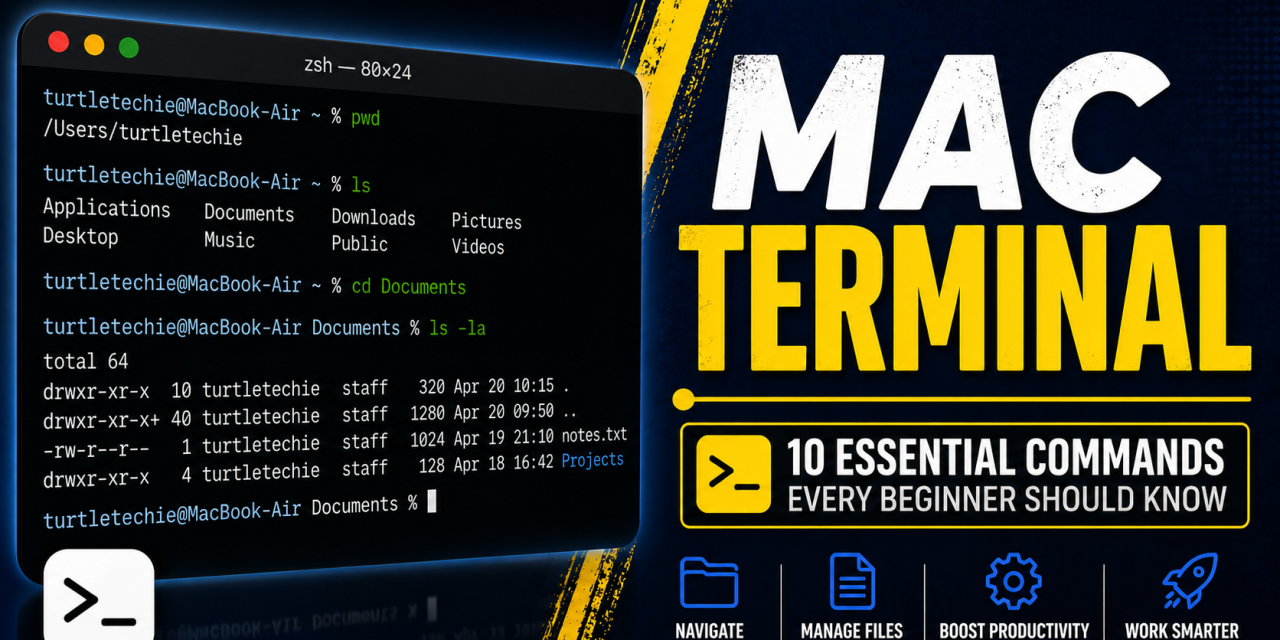
If you’ve ever opened Terminal on macOS and immediately thought “what am I even looking at?”—you’re not alone. The Terminal can feel intimidating at first, but you only need a handful of commands to start using it confidently.In this guide, you’ll learn 10 essential macOS Terminal commands you can start using right away—no experience needed.
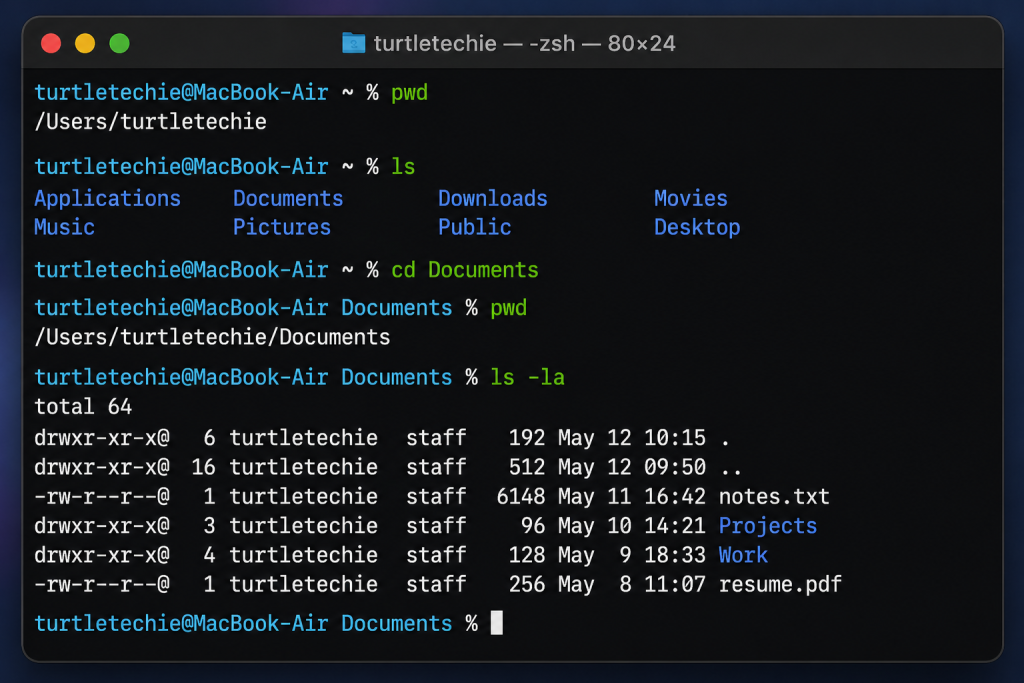
1. pwd — Show Your Current Location
Displays your current folder path.
pwd2. ls — List Files and Folders
Shows everything in your current directory.
lsDetailed list (including hidden files):
ls -la3. cd — Change Directory
Move between folders:
cd Documents
cd ..
cd ~
4. touch — Create a New File
Quickly create a new empty file:
touch notes.txt👉 Great for testing or starting files quickly
📦 5. mkdir — Create a Folder
Make a new directory:
mkdir Projects6. rm — Delete Files
Remove a file:
rm notes.txt⚠️ This permanently deletes files (no Trash)
7. cp — Copy Files
Copy a file:
cp file.txt backup.txt✂️ 8. mv — Move or Rename Files
Rename a file:
mv oldname.txt newname.txtMove a file:
mv file.txt Documents/9. open — Open Files or Apps
Open current folder in Finder:
open .Open an app:
open -a Safari10. defaults — Change Hidden macOS Settings
Show hidden files:
defaults write com.apple.finder AppleShowAllFiles -bool true
killall Finder
Hide them again:
defaults write com.apple.finder AppleShowAllFiles -bool false
killall Finder
Bonus: Get Help for Any Command
Use the manual:
man lsPress Q to exit.
Quick Commands You’ll Use Most
If you only remember a few commands, start with these:
- `ls` → See what’s in a folder
- `cd` → Move between folders
- `pwd` → See where you are
- `open .` → Open current folder in Finder
Want to Go Further?
If you plan to use Terminal more, having a good keyboard and screen setup makes a big difference, especially for longer sessions using the Terminal.
Final Thoughts
You don’t need to memorize everything at once.
Start with these 10 commands and you’ll already be ahead of most Mac users.
👉 The more you use Terminal, the more natural it becomes.