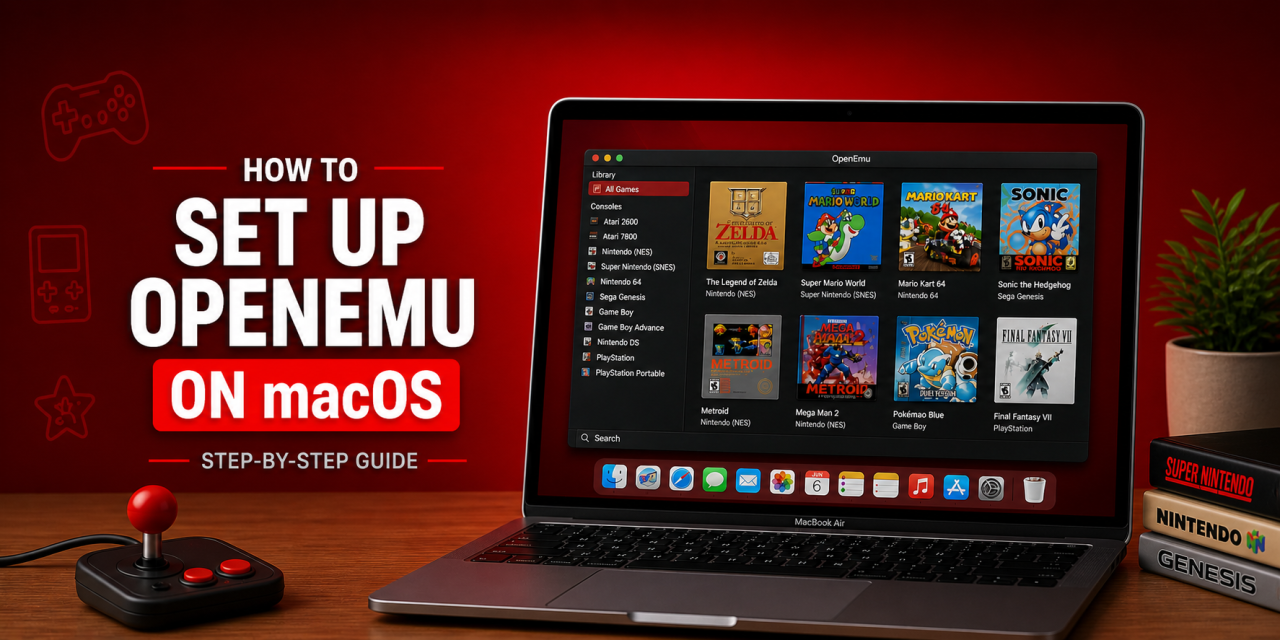
If you want to play retro games on your Mac, OpenEmu is one of the easiest ways to get started. It combines multiple emulators into one clean interface and feels like a native macOS app.
In this guide, you’ll learn how to set up OpenEmu on macOS step-by-step so you can start playing retro games quickly.
What Is OpenEmu?
OpenEmu is a free emulator frontend for macOS that supports multiple systems, including:
- Atari 2600
- NES
- SNES
- Nintendo 64
- Game Boy
- Game Boy Advance
- Sega Genesis
- PlayStation
Instead of installing separate emulators, OpenEmu keeps everything in one place.
Step 1: Download OpenEmu
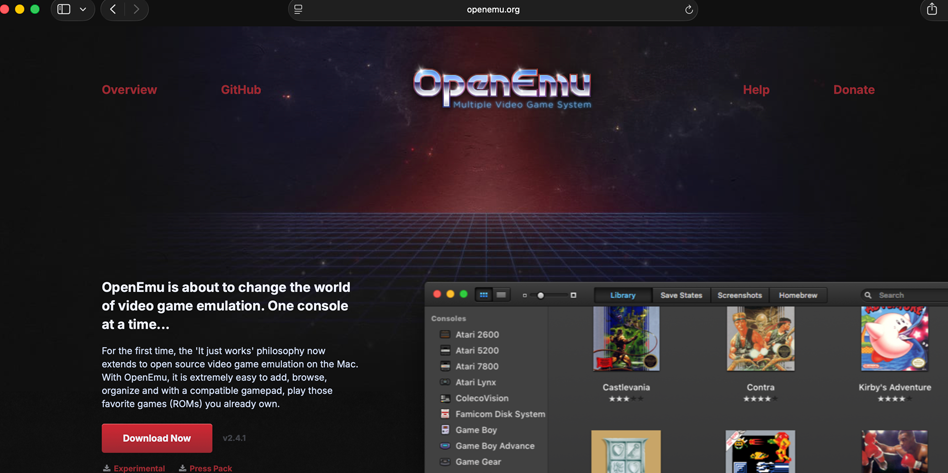
Download OpenEmu from the official website to begin setup on your Mac.
Visit the official OpenEmu website:
Click Download Now
Step 2: Install OpenEmu
Once downloaded:
- Open the
.dmgfile - Drag OpenEmu into your Applications folder
- Launch the app
Step 3: Allow OpenEmu to Run (If macOS Blocks It)
If macOS prevents it from opening:
- Go to System Settings
- Select Privacy & Security
- Scroll down
- Click Open Anyway
This usually happens because OpenEmu is downloaded from the web.
Step 4: Choose Your Consoles
When OpenEmu launches for the first time:
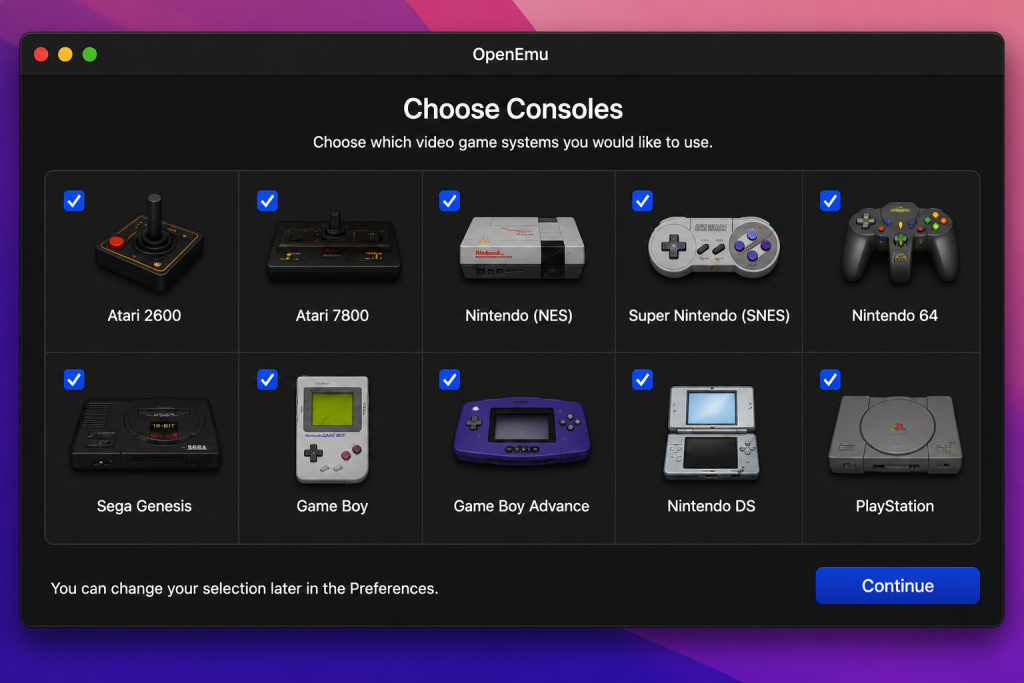
Choose the gaming systems you want OpenEmu to support during setup.
You’ll be asked which systems you want to enable. Choose the consoles you want to play. You can always add more later.
Step 5: Add Your Games
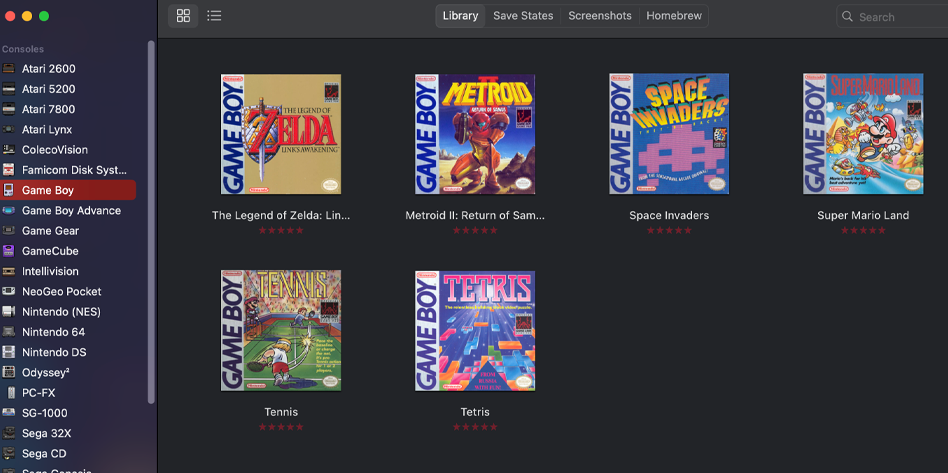
Add your ROMs to OpenEmu and organize your retro game library.
To import games:
Drag ROM files directly into OpenEmu or use:
File → Add to Library
Step 6: Configure a Controller (Optional)
For the best experience:
- Connect your controller
- Open OpenEmu settings
- Map your buttons
Popular controllers include:
- Xbox controllers (my personal choice)
- PlayStation controllers
- Nintendo Switch Pro Controller
Step 7: Start Playing
Once your games are imported:
- Select your game
- Click play
- Enjoy retro gaming on your Mac
Common Issues
OpenEmu Won’t Open
Check:
System Settings → Privacy & Security
Controller Not Working
Reconnect the controller and remap controls.
ROM Not Importing
Make sure the file format is supported.
Is OpenEmu Legal?
OpenEmu itself is legal.
However, downloading ROMs for games you do not own may violate copyright laws.
Always use legally obtained game files.
Final Thoughts
OpenEmu is one of the best ways to play retro games on macOS. Its clean design and simple setup make it perfect for beginners.
If you haven’t already, check out our guide on the best emulators for macOS to discover more options.