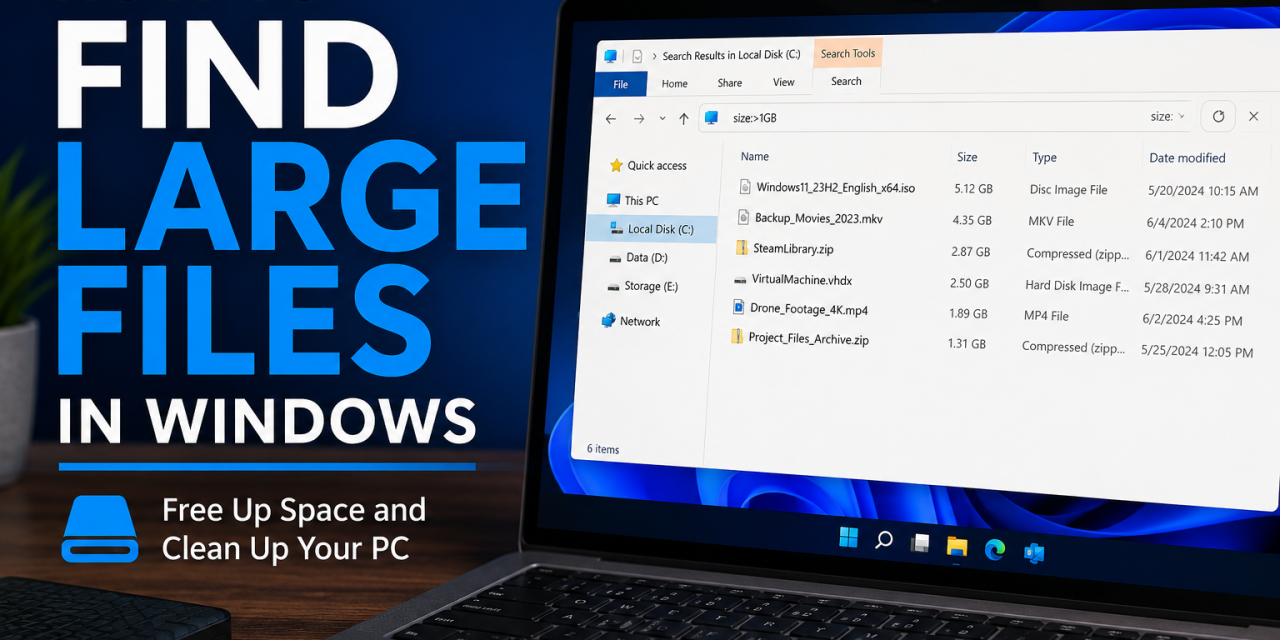
Running low on storage space can make your computer feel slower and less responsive. Fortunately, Windows includes several built-in tools that make it easy to identify large files and determine what’s taking up valuable disk space.
In this guide, we’ll show you several methods for finding large files in Windows 10 and Windows 11.
Why Find Large Files?
Large files are often responsible for unexpectedly full drives.
Common examples include:
- Old video files
- Downloads you forgot about
- Large game installers
- Virtual machine files
- Disk images (ISO files)
- Backup archives
- Duplicate media collections
Locating these files can help free up storage space and improve system organization.
Method 1: Use File Explorer Search
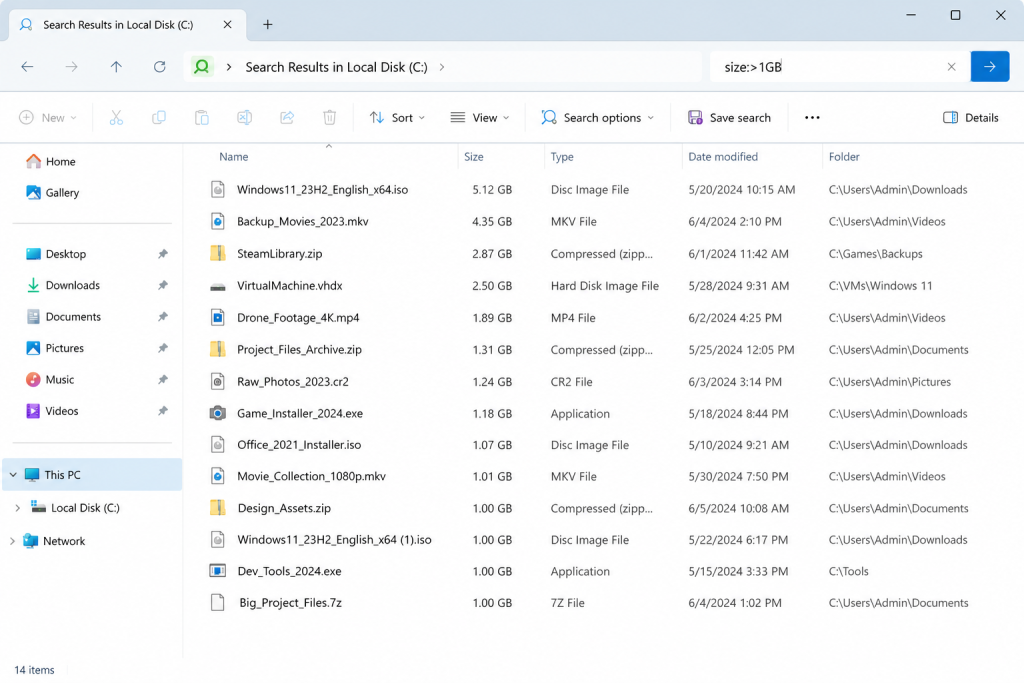
Using the size:>1GB search filter in File Explorer makes it easy to locate large files that may be consuming valuable disk space.
The easiest way to find large files is by using File Explorer.
Step 1
Open File Explorer by pressing:
Windows + E
Step 2
Select the drive you want to search, such as:
C:
Step 3
In the search box at the top-right corner, enter:
size:>500MB
This will display files larger than 500 MB.
You can also use:
size:>1GB
size:>5GB
size:>10GB
depending on how aggressively you want to search.
Step 4
Wait for Windows to finish scanning. Large drives may take several minutes to complete the search.
Method 2: Sort Files by Size
If you already know which folder is consuming space, sorting by size is often faster.
Step 1
Open the folder you want to examine.
Step 2
Switch to the Details view.
Step 3
Click the Size column header. Windows will sort files from largest to smallest. This method works particularly well for:
- Downloads folders
- Video folders
- Desktop files
- Backup directories
Method 3: Use Storage Settings
Windows includes a built-in storage management tool.
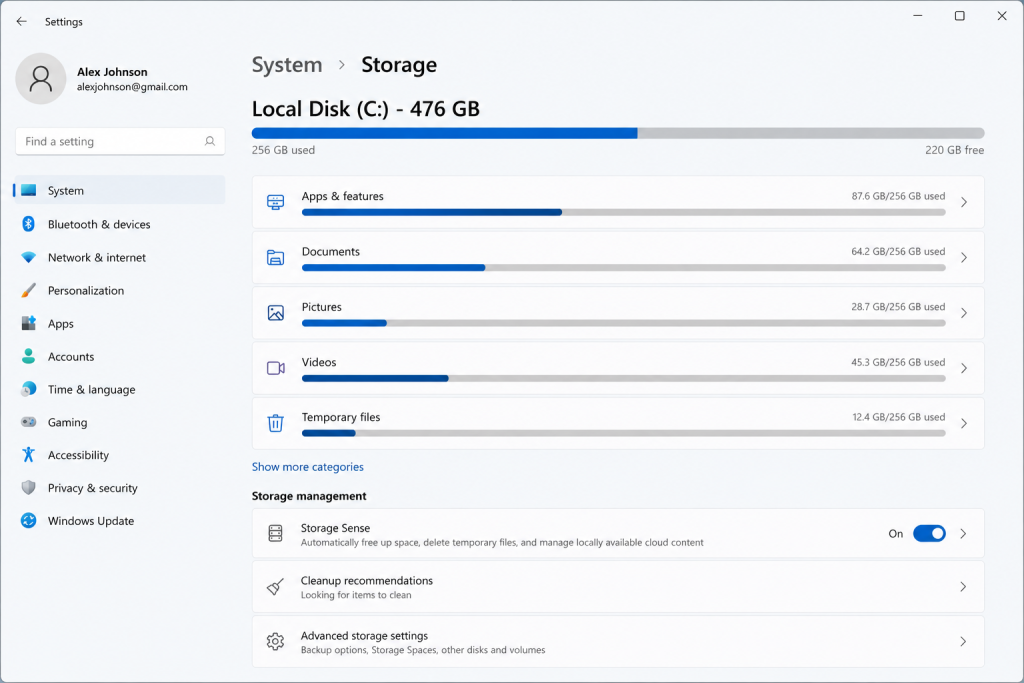
Windows Storage Settings provides a quick overview of what’s consuming space on your drive, helping you identify large categories of files for cleanup.
Step 1
Open:
Settings > System > Storage
Step 2
Allow Windows to analyze the drive.
Step 3
Review the categories shown, such as:
- Apps
- Documents
- Pictures
- Videos
- Temporary files
This provides a quick overview of what is using the most space.
Method 4: Find Large Files with PowerShell
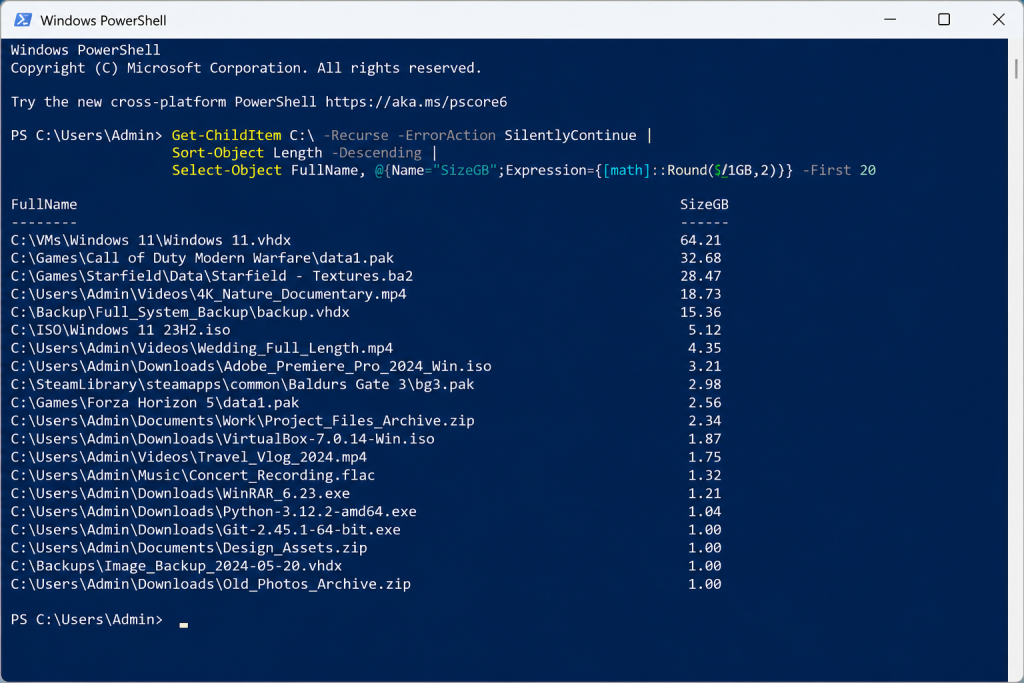
PowerShell can quickly identify the largest files on a drive, making it a useful tool for advanced storage analysis and troubleshooting.
Advanced users may prefer PowerShell. Open PowerShell and run:
Get-ChildItem C:\ -Recurse -ErrorAction SilentlyContinue |
Sort-Object Length -Descending |
Select-Object FullName, @{Name="SizeGB";Expression={[math]::Round($_.Length/1GB,2)}} -First 20
This command lists the 20 largest files on the drive.
Benefits
- Extremely detailed
- Useful for troubleshooting
- Works on very large drives
Method 5: Use TreeSize Free
If you frequently manage storage space, a dedicated utility can make the process easier. TreeSize Free scans your drive and presents results in an easy-to-read format.
Benefits include:
- Visual folder size breakdown
- Fast scanning
- Easy identification of storage hogs
For many users, it provides a clearer picture than File Explorer alone.
Files You Should Be Careful About Deleting
Not every large file should be removed. Avoid deleting:
- Windows system files
- Files inside the Windows folder
- Program files you don’t recognize
- Driver-related files
When in doubt, research a file before deleting it. If you do have programs you would like to uninstall, you can follow our How to Uninstall Programs in Windows guide.
Common Places Large Files Hide
Large files are often found in:
Downloads
Old installers and ZIP archives frequently accumulate here.
Videos
Personal recordings and downloaded media can consume large amounts of space.
Desktop
Many users unknowingly store large files directly on their desktop.
Virtual Machines
Virtual machine images can easily exceed tens of gigabytes.
Game Libraries
Modern games regularly exceed 50 GB or more.
Final Thoughts
Finding large files in Windows is one of the quickest ways to recover valuable storage space. For most users, File Explorer search and Windows Storage Settings provide everything needed to locate oversized files. Advanced users can use PowerShell or tools like TreeSize Free for more detailed analysis.
Regularly reviewing large files can help keep your system organized, improve available storage, and make future cleanup tasks much easier. Don’t use Windows? Check our our guides for both Mac and Linux.