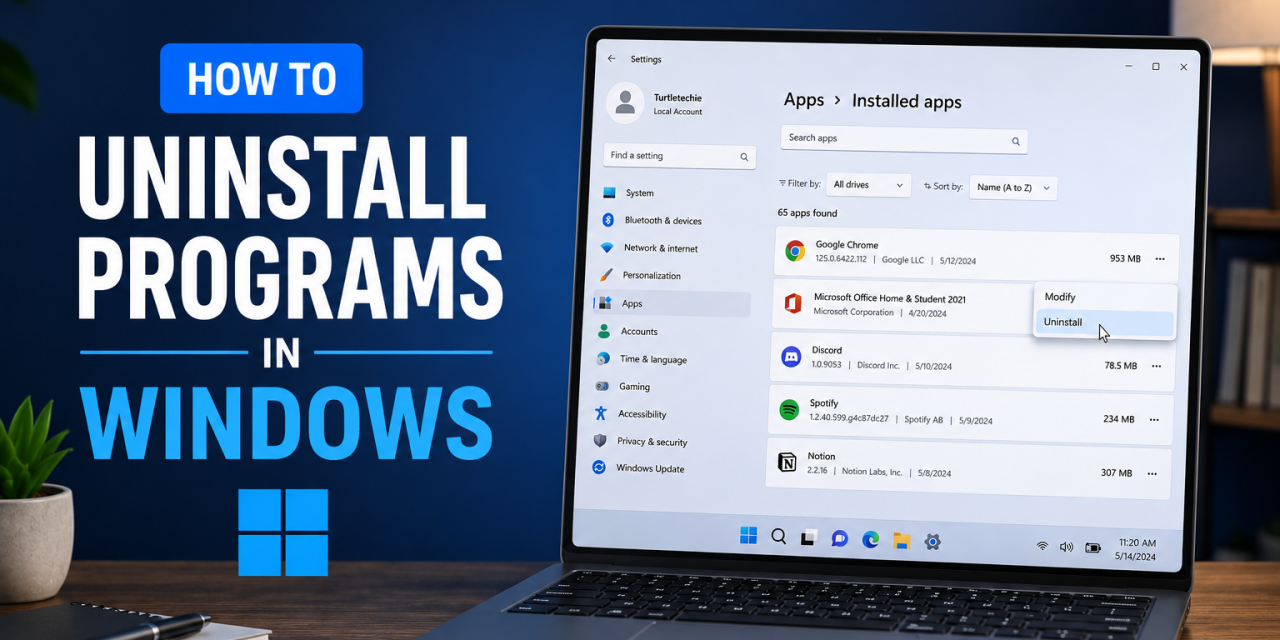
Over time, it’s easy to accumulate software you no longer use. Unused applications can take up valuable storage space, slow down startup times, and clutter your system. Regularly removing programs you no longer need can help keep Windows organized and running smoothly.
Fortunately, Windows provides several simple ways to uninstall software. Whether you’re using Windows 11 or Windows 10, here’s how to uninstall programs safely and completely.
Method 1: Uninstall Programs Through Settings
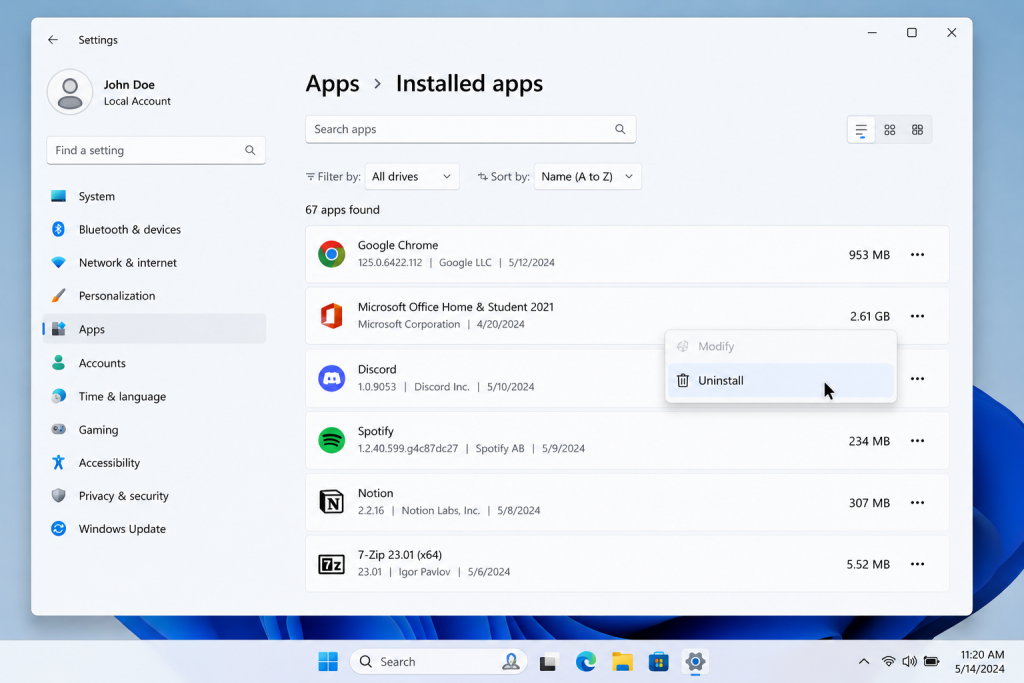
The Installed Apps section in Windows 11 provides the easiest way to remove most programs and free up storage space.
The easiest way to remove most software is through the Windows Settings app.
Open: Settings
Select: Apps
Then choose:
Installed Apps (Windows 11)
or
Apps & Features (Windows 10)
Scroll through the list and select the application you want to remove.
Click: Uninstall
Follow any prompts provided by the application’s uninstall wizard.
For most users, this is the quickest and safest method.
Method 2: Use the Control Panel
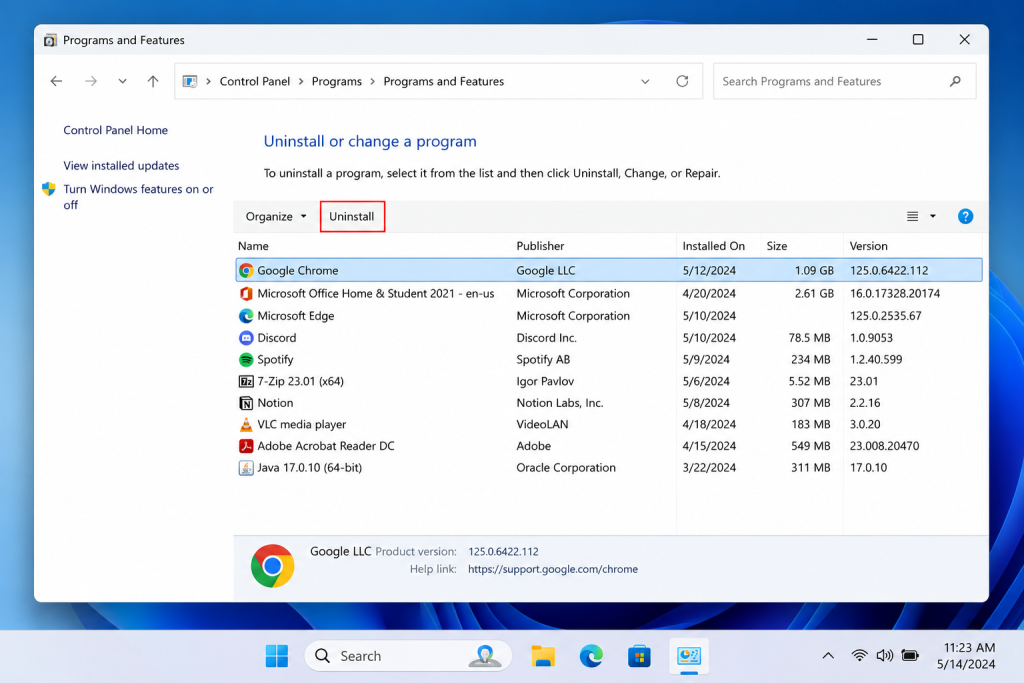
The Programs and Features section of Control Panel remains a useful way to uninstall older desktop applications in Windows.
Some older programs still rely on the traditional Control Panel uninstall process.
Open: Control Panel
Select: Programs and Features
Locate the application you want to remove.
Right-click the program and select: Uninstall
This method remains useful for older desktop applications and legacy software.
Method 3: Uninstall Microsoft Store Apps
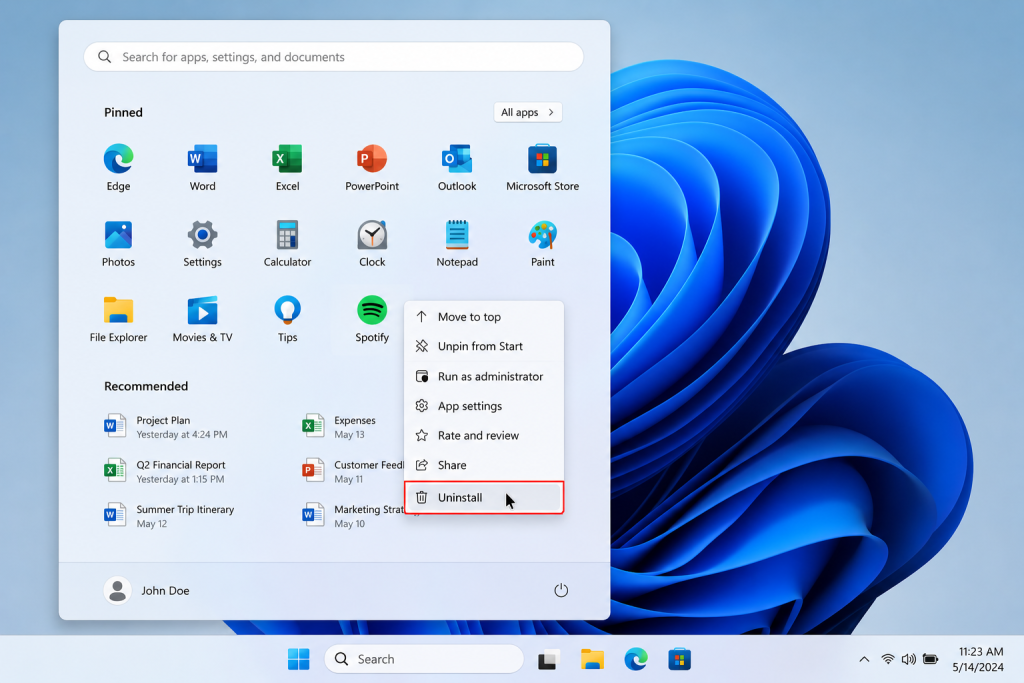
Many Microsoft Store apps can be removed directly from the Start Menu by right-clicking the app and selecting Uninstall.
Applications installed through the Microsoft Store can usually be removed directly from the Start Menu.
Open the: Start Menu
Find the application.
Right-click the app and select: Uninstall
This is often the fastest way to remove smaller applications and utilities.
What If a Program Won’t Uninstall?
Occasionally, software may refuse to uninstall properly.
Common solutions include:
- Restarting your computer
- Closing the application before uninstalling
- Running the uninstall process as Administrator
- Checking for background processes in Task Manager
If a program still refuses to uninstall, the software vendor may provide a dedicated removal tool.
Removing Leftover Files
Some programs leave behind folders, settings files, or temporary data after being removed.
Common locations to check include:
C:\Program Files
C:\Program Files (x86)
C:\Users\YourUsername\AppData
Only remove leftover files if you’re certain they belong to software you have already uninstalled.
Why Uninstalling Programs Matters
Removing unused software can help:
- Free up storage space
- Reduce system clutter
- Improve organization
- Eliminate unused background services
- Simplify backups
Many users are surprised by how much storage unused applications consume over time.
Common Mistakes to Avoid
Before uninstalling a program, make sure you know what it does.
Avoid removing:
- Hardware drivers
- Security software you still use
- System components
- Programs required by other applications
If you’re unsure about a program, research it before uninstalling.
How to See Which Programs Use the Most Space
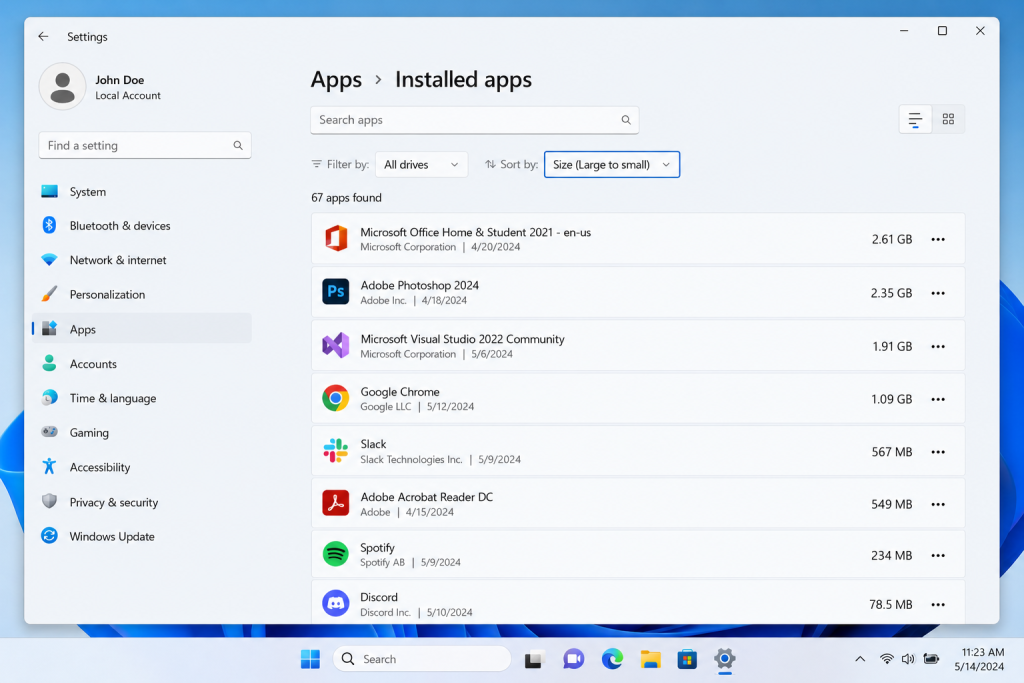
Sorting installed applications by size makes it easy to identify large programs that may be taking up valuable storage space on your PC.
To identify large applications:
Open: Settings → Apps → Installed Apps
Click: Sort By → Size
This can help you quickly identify software that consumes significant storage space.
If you’re trying to free additional disk space on your Mac, you may also want to check out our guide on how to uninstall apps on Mac and future storage management guides.
Final Thoughts
Windows makes it easy to remove unwanted software using Settings, the Control Panel, or the Start Menu. Regularly uninstalling programs you no longer use can help keep your system organized, reduce clutter, and free valuable storage space.
Taking a few minutes every couple of months to review installed applications can go a long way toward maintaining a clean and efficient Windows PC.