Monitoring your GPU temperature is important for gaming performance, system stability, and overall hardware health. If your graphics card gets too hot, you may experience lower performance, loud fan noise, crashes, graphical glitches, or overheating problems.
The good news is that Windows makes it fairly easy to monitor GPU temperatures using built-in tools and third-party software. Here’s how to check your GPU temperature on Windows.
Why GPU Temperature Matters
Your graphics card works hard during gaming, video editing, streaming, 3D rendering, and other demanding tasks. Higher temperatures are normal during heavy workloads, but excessive heat can reduce performance and shorten hardware lifespan over time.
Monitoring your GPU temperature can help you:
- Identify overheating issues
- Improve airflow
- Adjust fan settings
- Troubleshoot crashes
- Monitor gaming performance
- Prevent thermal throttling
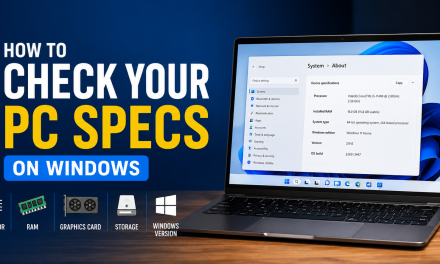
If you are troubleshooting hardware or gaming performance, it also helps to know your full system specifications. Check out our guide on how to check your PC specs on Windows.
What Is a Normal GPU Temperature?
Most modern GPUs typically run:
- 30°C to 45°C while idle
- 60°C to 85°C while gaming
Temperatures above 90°C may indicate cooling problems.
Exact temperatures vary depending on your graphics card, case airflow, room temperature, and cooling setup. Gaming laptops often run hotter than desktop PCs because of limited airflow.
Method 1: Use Task Manager
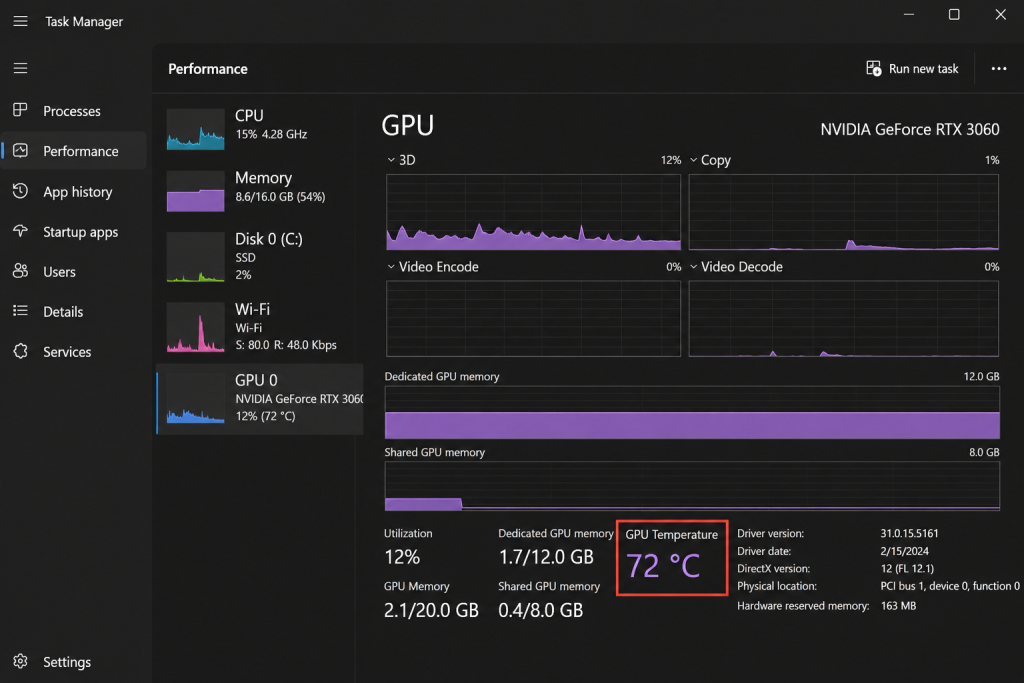
Task Manager provides a quick way to monitor GPU usage, memory usage, and temperature directly in Windows.
Windows includes basic GPU monitoring tools.
Press: Ctrl + Shift + Esc
Click: Performance
Select: GPU
You can view:
- GPU usage
- GPU memory usage
- GPU temperature
This is the fastest method for most users.
Method 2: Use NVIDIA App or AMD Software
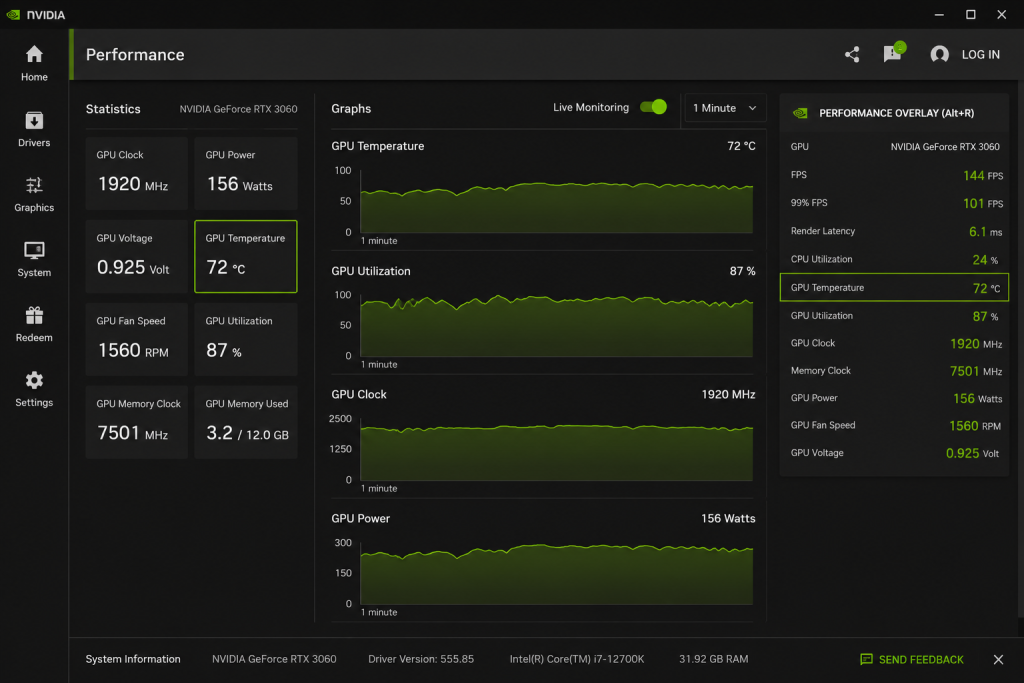
The NVIDIA App provides advanced GPU monitoring tools including temperatures, utilization, fan speed, and performance statistics.
Most graphics card manufacturers provide their own monitoring software.
NVIDIA Users
The NVIDIA App can display:
- GPU temperatures
- Performance metrics
- Driver information
- Game optimization settings
AMD Users
AMD Software: Adrenalin Edition also includes:
- Temperature monitoring
- Performance tuning
- Fan controls
- Gaming overlays
These apps often provide more detailed information than Windows alone.
Method 3: Use MSI Afterburner
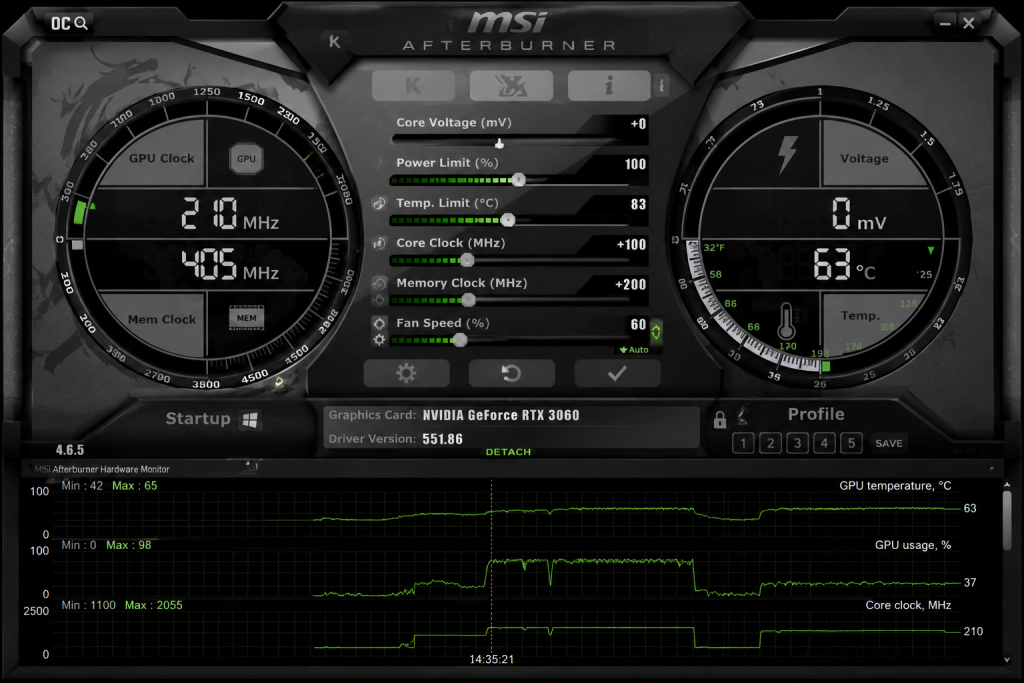
MSI Afterburner offers advanced GPU monitoring tools including temperature tracking, fan controls, performance graphs, and overclocking features.
MSI Afterburner is one of the most popular GPU monitoring tools available.
Why people use it:
- Real-time temperature monitoring
- Custom fan controls
- Performance overlays
- GPU overclocking
- Detailed hardware statistics
It is especially popular among gamers and PC enthusiasts.
Signs Your GPU May Be Overheating
Common symptoms include:
- Loud fan noise
- FPS drops during gaming
- Random crashes
- Black screens
- Visual artifacts
- Excessively high temperatures
If you notice these issues regularly, your GPU cooling may need attention.
Common Causes of High GPU Temperatures
Several things can increase GPU temperatures.
- Dust Buildup: Dust can block airflow inside your PC.
- Poor Airflow: Small cases and poor fan placement can trap heat.
- High Ambient Room Temperature: Warm rooms naturally increase PC temperatures.
- Old Thermal Paste: Older graphics cards may need fresh thermal paste.
Tips to Reduce GPU Temperatures
- Clean dust from your PC regularly
- Improve case airflow
- Adjust fan curves
- Keep your room cooler
- Avoid blocking ventilation
- Limit aggressive overclocking
How Often Should You Check GPU Temperatures?
Most users do not need to monitor temperatures constantly. However, it is a good idea to check GPU temperatures:
- After installing a new graphics card
- During gaming sessions
- After cleaning your PC
- If performance problems appear
- When overclocking hardware
Final Thoughts
Checking your GPU temperature on Windows is quick and easy. Task Manager works well for basic monitoring, while tools like MSI Afterburner provide more advanced features for gamers and power users.
If you’re troubleshooting gaming performance, monitoring temperatures is one of the first things you should check. If you’re upgrading your setup, you may also want to explore our guide on best gaming keyboards in 2026.