Linux wasn’t always known for playing games. But these days things have changed. If you’re using Ubuntu and want to play games, installing Steam is one of the first things you should do. The good news? Installing Steam on Ubuntu is quick and easy once you know the right steps.
In this guide, you’ll learn how to install Steam on Ubuntu step-by-step, including the easiest method and a few tips to avoid common issues.
Quick Overview
Here’s the fastest way to install Steam:
sudo apt update
sudo apt install steam
That’s it—but let’s go through it properly so everything works smoothly.
Method 1: Install Steam Using Terminal (Recommended)
This is the easiest and most reliable method.
Step 1: Open Terminal
Press:
Ctrl + Alt + T
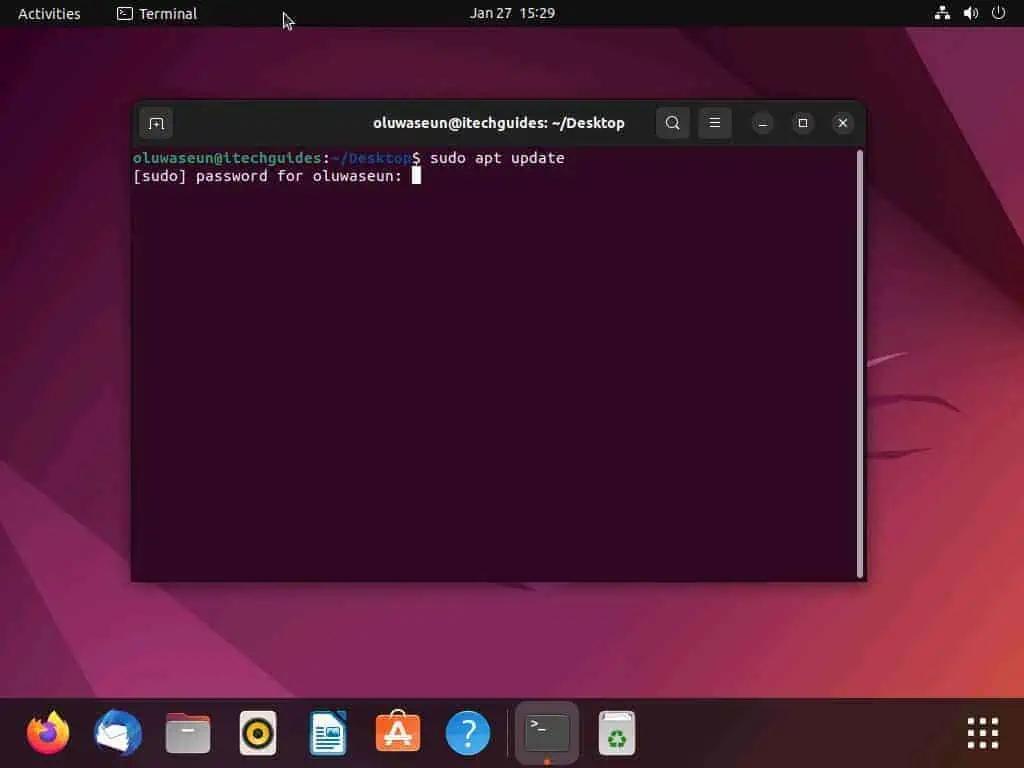
Updating package lists in Ubuntu using the terminal.
Step 2: Update Your System
sudo apt updateStep 3: Install Steam
sudo apt install steam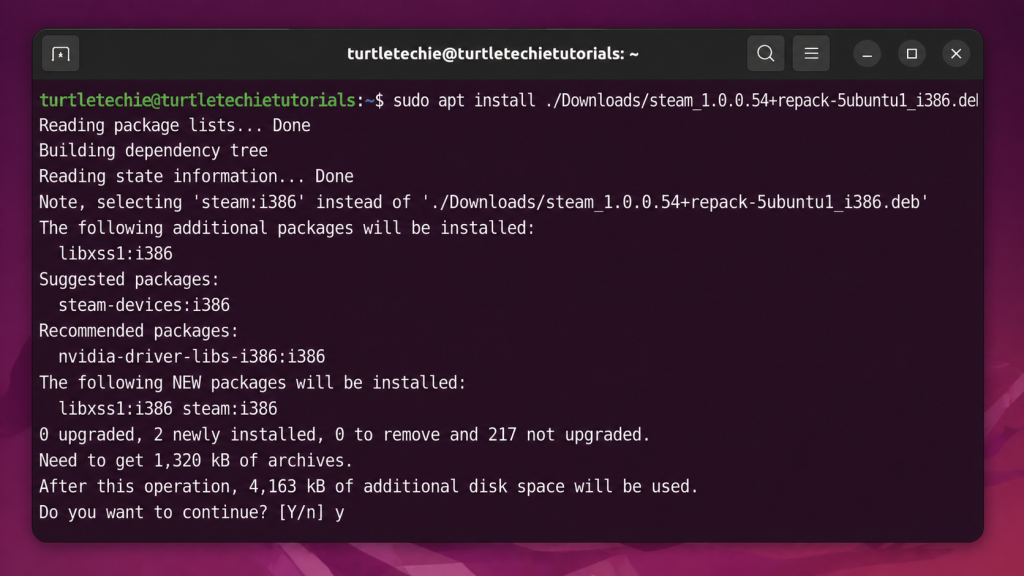
Installing Steam on Ubuntu using the terminal.
When prompted, press:
Y and hit Enter
Step 4: Launch Steam
After installation:
steamSteam will update itself and install required components
Method 2: Install Steam Using Ubuntu Software
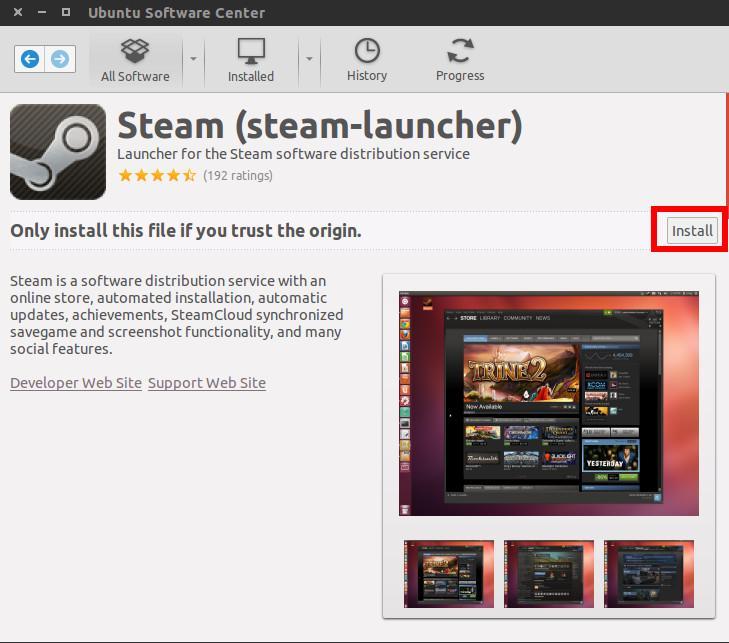
Installing Steam from the Ubuntu Software Center.
If you prefer a graphical method:
- Open Ubuntu Software
- Search for Steam
- Click Install
This installs the same version as the terminal method
What Happens on First Launch
The first time you open Steam:
- It downloads updates
- Installs dependencies
- Prompts you to log in
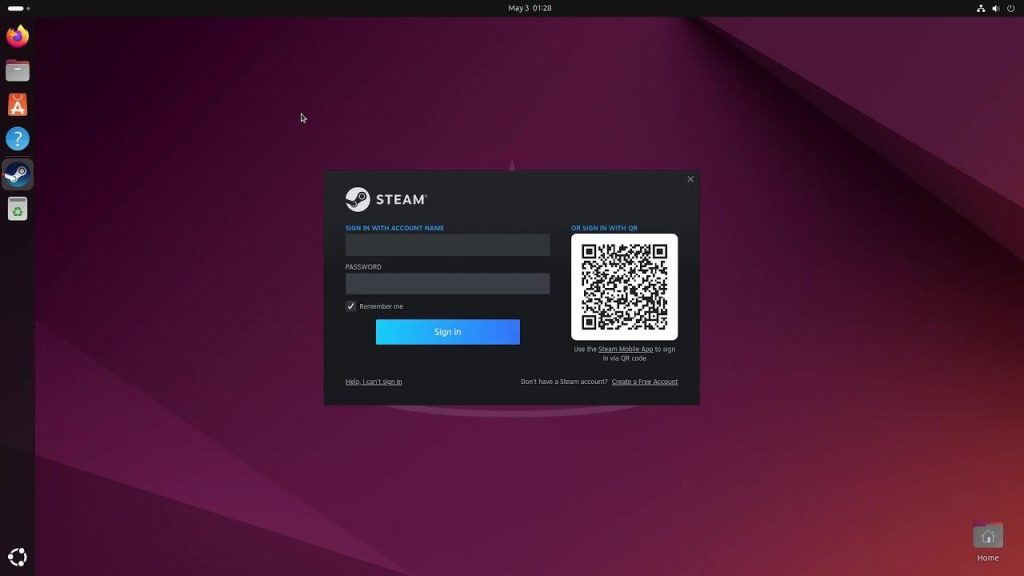
Steam launching for the first time on Ubuntu.
This may take a few minutes
Enable Proton (Play Windows Games)
Steam on Linux uses Proton to run Windows games.
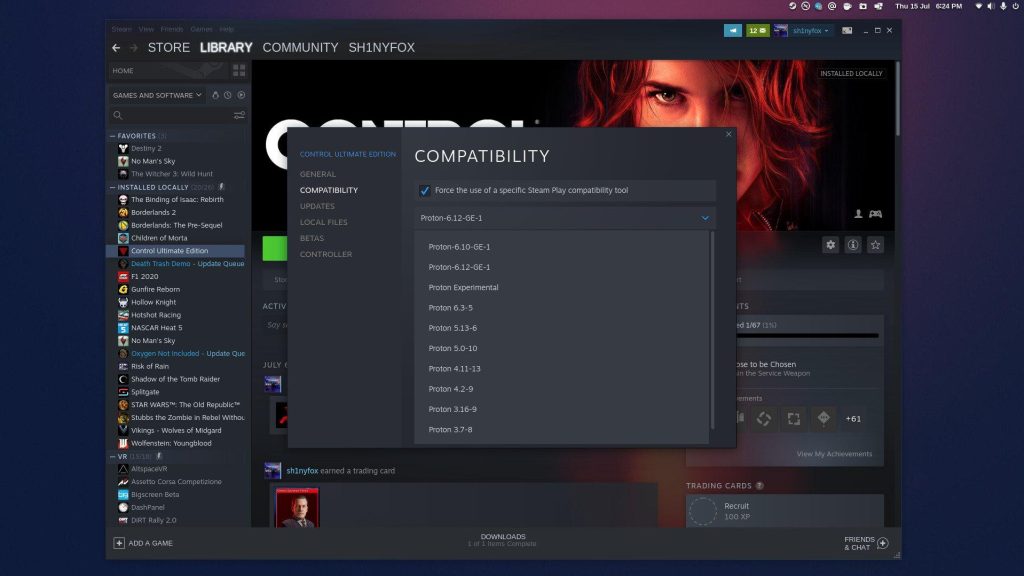
Enabling Proton in Steam to play Windows games on Linux.
To enable it:
- Open Steam
- Go to Settings → Compatibility
- Check:
- Enable Steam Play for supported titles
- Enable Steam Play for all other titles
This unlocks thousands of games
Common Issues (And Fixes)
Steam won’t open
Try running:
steam --resetMissing dependencies
Run:
sudo apt --fix-broken installPoor performance
- Update your GPU drivers
- Enable Proton Experimental
- Check game compatibility on ProtonDB
Tips for Better Performance
- Use the latest Ubuntu version
- Install updated graphics drivers
- Close background apps while gaming
Final Thoughts
Installing Steam on Ubuntu is straightforward, and once it’s set up, Linux becomes a surprisingly strong gaming platform.
Start with:
- Terminal install
- Enable Proton
- Test a few games
You’ll be up and running in minutes.
How Has Steam on Linux Run for You?
I was surprised how well Proton works—many Windows games run without any tweaking at all. But admittedly it hasn’t been perfect. How has Steam on Linux run for you?