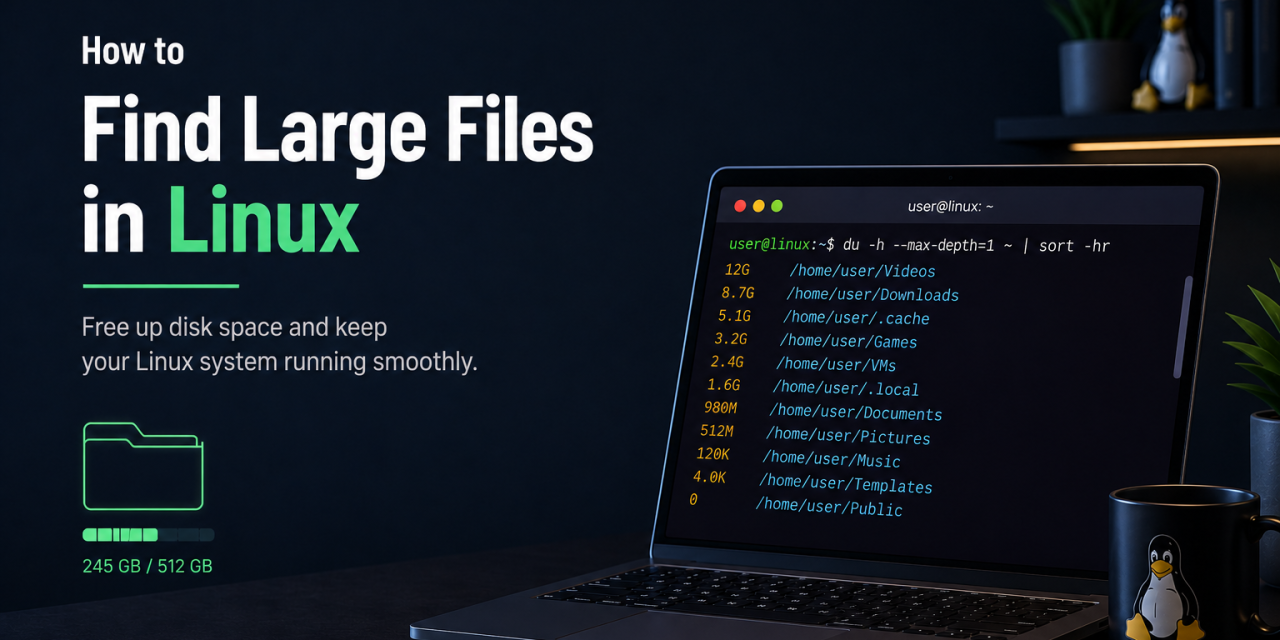
Running out of disk space on Linux can happen faster than expected, especially if you download large files, install games, work with virtual machines, or store media files locally. Fortunately, Linux includes several powerful tools that make it easy to locate large files and identify what is using your storage space.
Whether you use Ubuntu, Fedora, Debian, Arch Linux, or another distribution, these methods work on most Linux systems.
Here’s how to find large files in Linux.
Why Storage Fills Up on Linux
Large files can accumulate over time without you realizing it.
Common causes include:
- Game installations
- Video downloads
- Virtual machines
- Docker containers
- System logs
- Old backups
- Package caches
Finding these files early can help prevent storage issues and keep your system running smoothly.
Method 1: Use the du Command
One of the most useful commands for checking disk usage is:
du
A common way to find large folders is:
du -h --max-depth=1 /
What this command does
-hdisplays file sizes in a readable format--max-depth=1limits how deep the scan goes/scans the root directory
This helps identify which directories are using the most space.
Method 2: Sort Results by Size
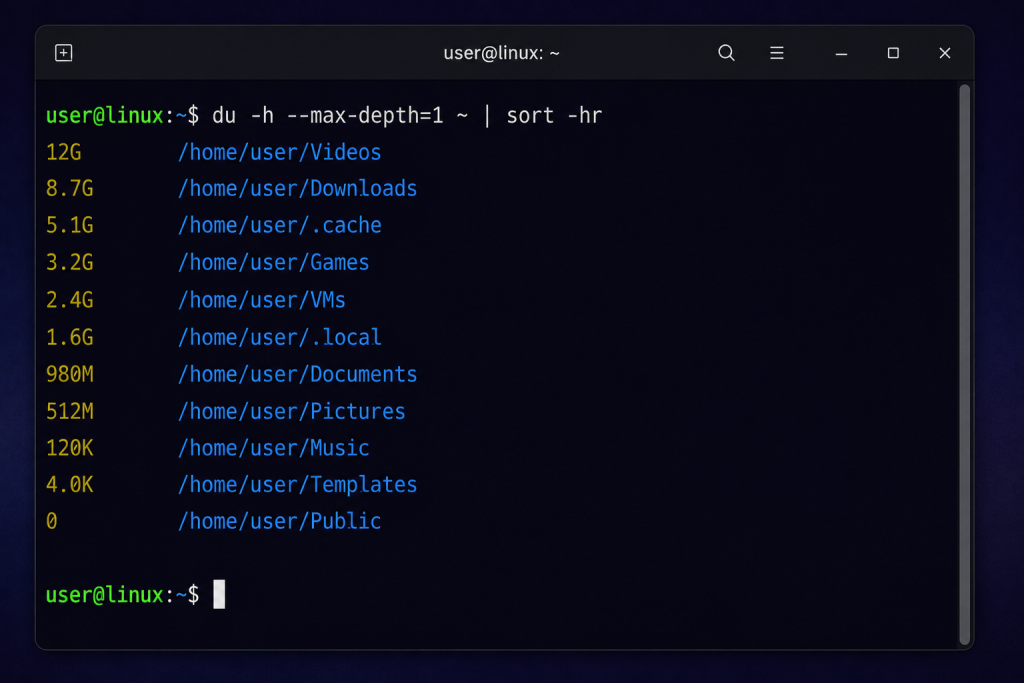
The du command can quickly identify which folders are using the most storage space on a Linux system.
You can combine commands to quickly sort directories by size:
du -h --max-depth=1 ~ | sort -hr
This displays the largest folders in your home directory first. For many users, this is the fastest way to identify storage problems.
Method 3: Find Large Files Directly
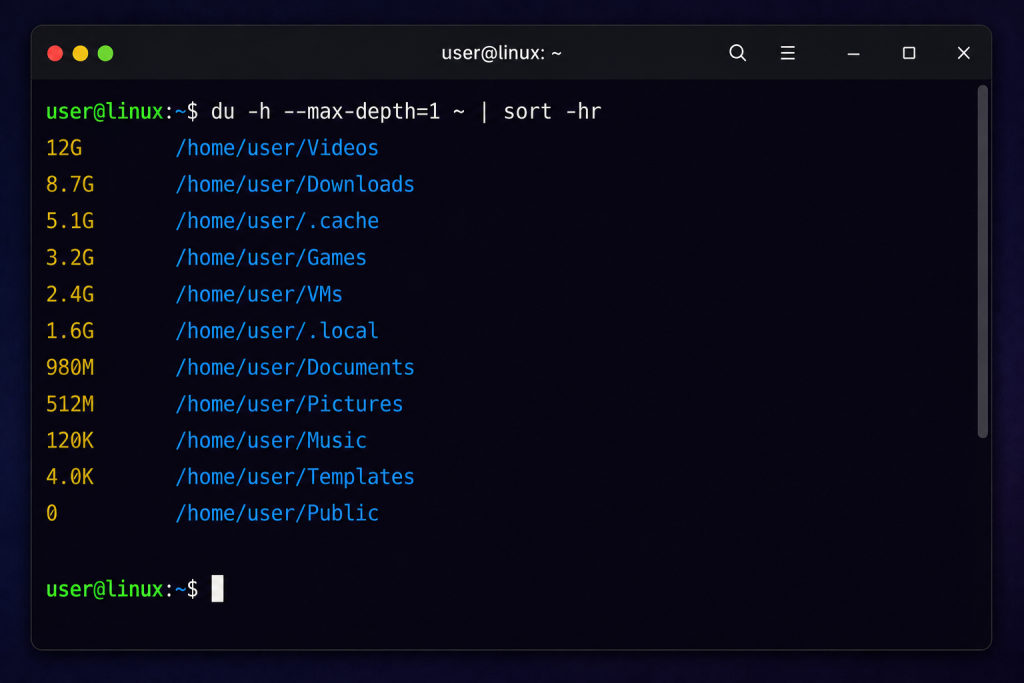
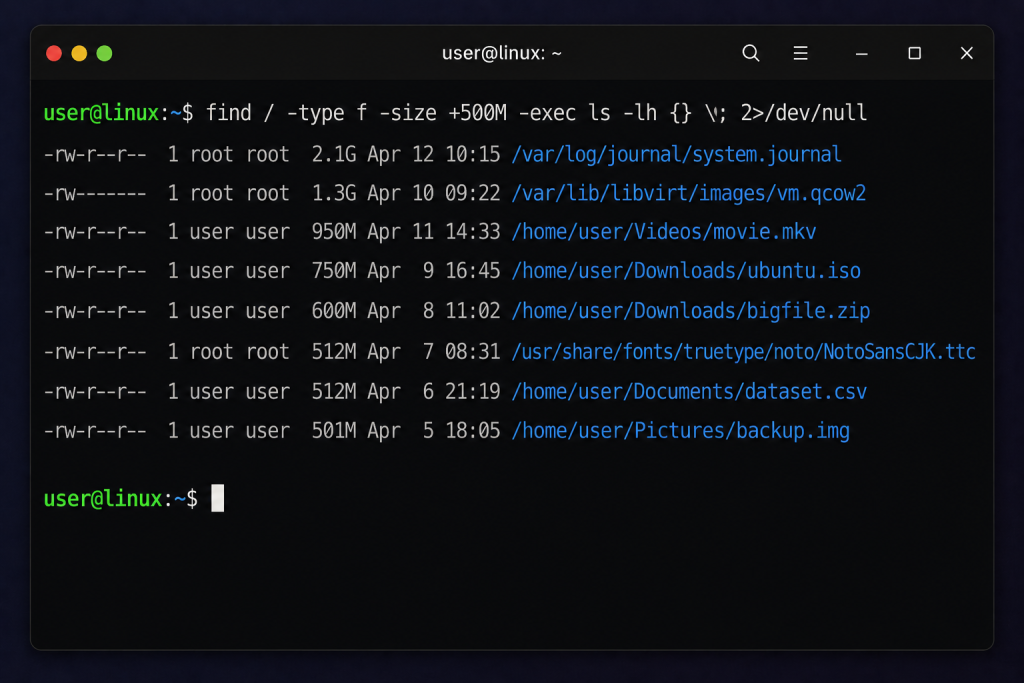
The Linux find command can search the filesystem for files larger than a specific size, making it useful for locating storage-heavy files quickly.
To locate files larger than 1 GB:
find / -type f -size +1G 2>/dev/null
What this command does
findsearches the filesystem-type flimits results to files-size +1Gsearches for files larger than 1 GB2>/dev/nullhides permission errors
You can adjust the file size as needed.
Examples:
-size +500M
-size +2G
Method 4: Use ncdu
The ncdu utility provides a simple interactive interface for analyzing disk usage and finding large folders on Linux systems.
Many Linux users prefer a tool called:
ncdu
It provides a simple interactive interface for browsing disk usage.
To install it on Ubuntu or Debian:
sudo apt install ncdu
Then run:
ncdu /
This is one of the easiest ways to visually identify large folders and files. You can learn more about ncdu on the official ncdu website.
Method 5: Use Your File Manager
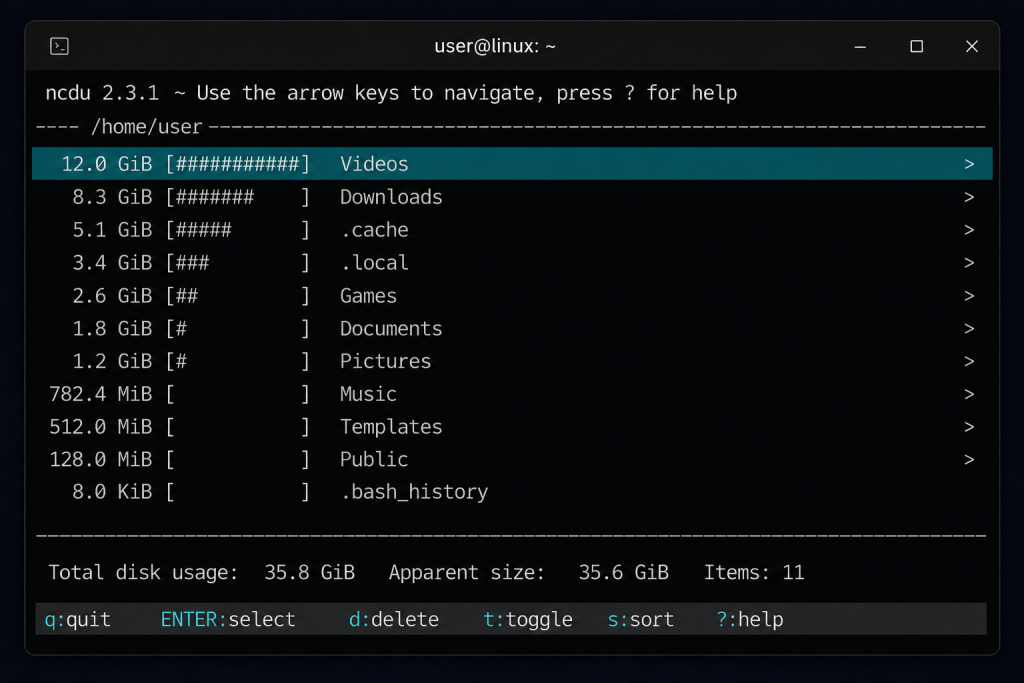
Tools like ncdu and graphical disk analyzers make it easier to visualize storage usage and identify large folders quickly.
If you prefer a graphical interface, many Linux desktop environments include storage tools built into the file manager.
For example:
- GNOME users can use Disk Usage Analyzer
- KDE users can use Filelight
These tools display storage usage visually and may feel easier for beginners who are less comfortable using the terminal.
Common Places Large Files Hide
Large files are often found in:
- Downloads folders
- Video directories
- Virtual machine images
- Game installations
- Docker containers
- System logs
- Backups
Checking these locations first can save time.
Tips for Freeing Up Space
After identifying large files, you can free up space by:
- Removing old downloads
- Deleting unused games
- Cleaning package caches
- Removing old backups
- Deleting unnecessary virtual machine files
However, be careful not to remove important system files.
Be Careful Deleting System Files
Before removing files, make sure you understand what they are used for. Deleting important system files can break applications or even prevent Linux from booting properly. When in doubt, research the file before deleting it.
How to Check Overall Disk Usage
You can check overall drive usage with:
df -h
This command shows:
- total storage
- used storage
- available storage
- mounted drives
It is one of the most commonly used Linux disk commands.
Final Thoughts
Linux provides several excellent tools for finding large files and managing storage space.
Commands like du, find, and df are extremely useful for troubleshooting storage issues, while tools like ncdu offer a more beginner-friendly experience.
If you are new to Linux, learning these basic storage commands can make maintaining your system much easier over time. Regularly checking disk usage can help keep your Linux system organized and prevent storage problems before they become serious.
If you also use macOS, check out our guide on how to uninstall apps on Mac to help free up storage space there as well.