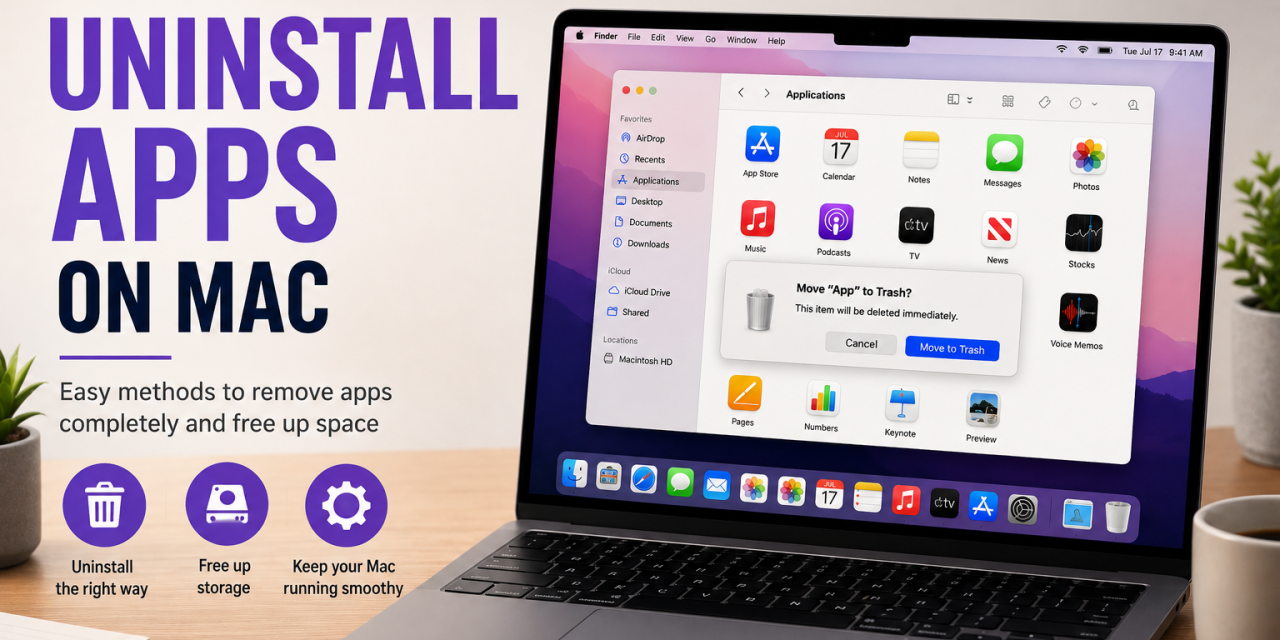
Removing apps on a Mac is usually simple, but some applications leave behind extra files even after being deleted.
Knowing the proper way to uninstall apps can help free up storage space, reduce clutter, and avoid leftover background processes or startup items. Whether you want to remove unused software, troubleshoot problems, or clean up your Mac, there are several easy ways to uninstall applications on macOS.
Here’s how to uninstall apps on Mac.
Method 1: Drag Apps to the Trash
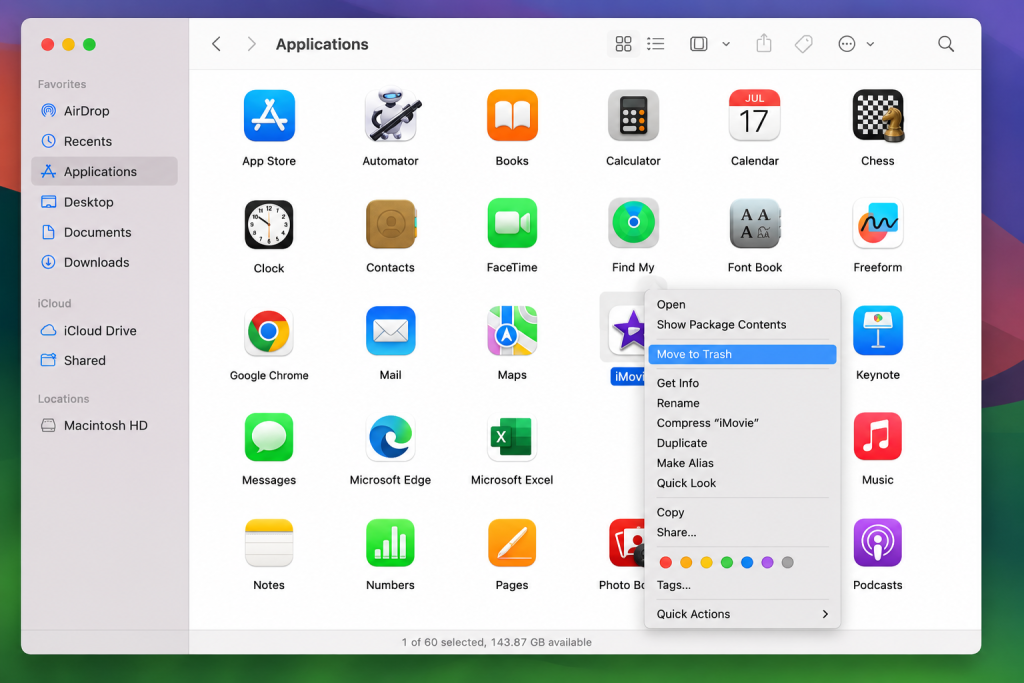
Most Mac applications can be removed directly from the Applications folder by moving them to the Trash.
For many applications, uninstalling is as simple as moving the app to the Trash.
Open: Finder
Go to: Applications
Find the app you want to remove.
Drag it to the Trash or right click and select: Move to Trash
Afterward, empty the Trash to fully remove the application. This method works well for many standard Mac apps.
Method 2: Use Launchpad
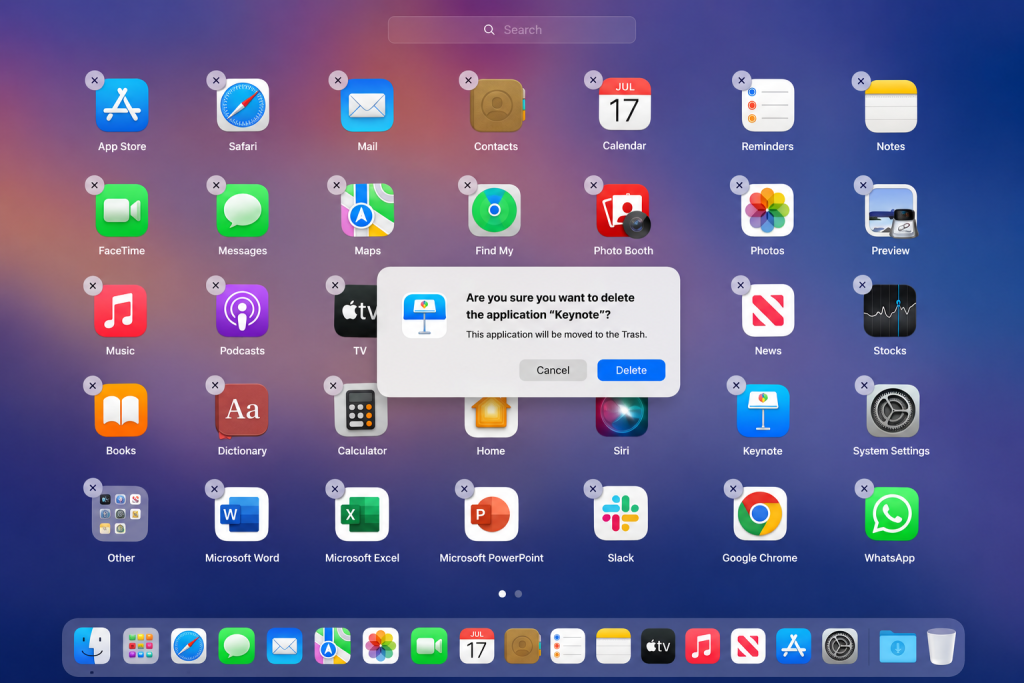
Apps installed through the Mac App Store can often be removed directly from Launchpad using the delete option.
Apps installed through the Mac App Store can often be removed through Launchpad.
Open: Launchpad
Click and hold the app icon until the icons begin to shake.
Click the: X next to the app you want to remove.
This method is quick and beginner friendly.
Method 3: Remove Leftover Files
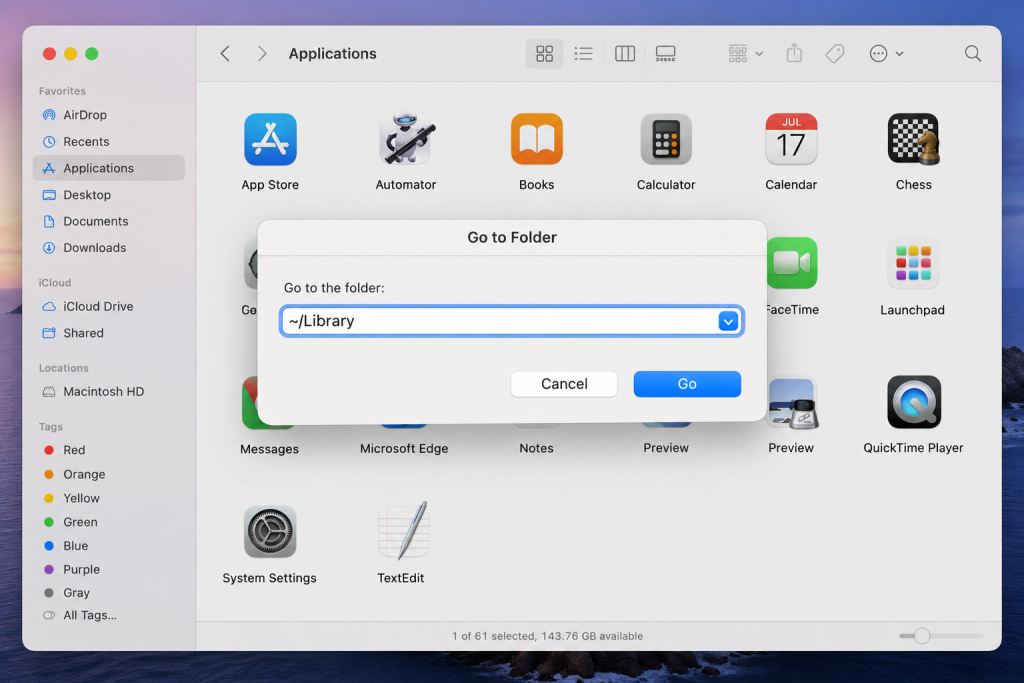
The Go to Folder feature in Finder can be used to access the hidden ~/Library folder and remove leftover application files.
Some apps leave behind support files after being deleted.
These files may include:
- Caches
- Preferences
- Saved settings
- Logs
To check for leftover files:
Open: Finder
Click: Go → Go to Folder
Type:
~/Library
Common folders to check include:
- Application Support
- Caches
- Preferences
Only delete files related to apps you have already removed.
Method 4: Use Third-Party Uninstaller Apps
Some users prefer cleanup tools that automatically remove leftover files.
Popular options include:
These tools can simplify the uninstall process, especially for larger applications.
Why Uninstalling Apps Matters
Removing unused apps can help:
- Free up storage space
- Reduce clutter
- Improve organization
- Remove unnecessary background processes
- Simplify backups
This can be especially helpful on Macs with limited storage.
Common Problems When Uninstalling Apps
The App Won’t Delete
Close the application completely and try again. You may also need to restart your Mac.
The App Keeps Reappearing
Some apps include background services or launch agents. Check Login Items and background processes.
You Accidentally Deleted the Wrong App
Restore it from the Trash before emptying it permanently.
How to Check Storage Usage on Mac
To see which apps are using storage:
Click: Apple Menu → About This Mac → Storage
This can help identify large applications you may no longer need.
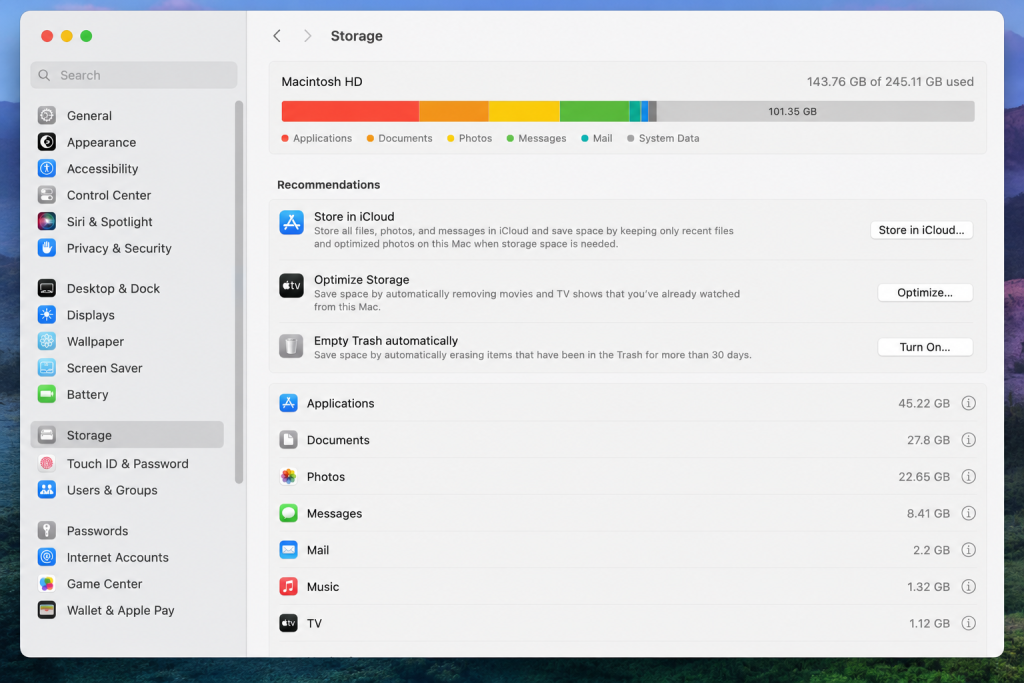
The macOS Storage screen helps identify large applications and files that may be taking up valuable disk space.
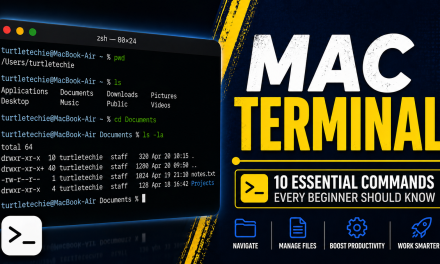
If you’re looking for even more control over your Mac, the Terminal is the way to go. Check out our guide on the 10 essential Terminal commands on Mac.
Final Thoughts
Uninstalling apps on Mac is usually quick and easy, especially for apps downloaded from the App Store. For larger applications or older software, checking for leftover files can help keep your Mac organized and free up extra storage space.
Regularly removing apps you no longer use can help keep macOS running smoothly.