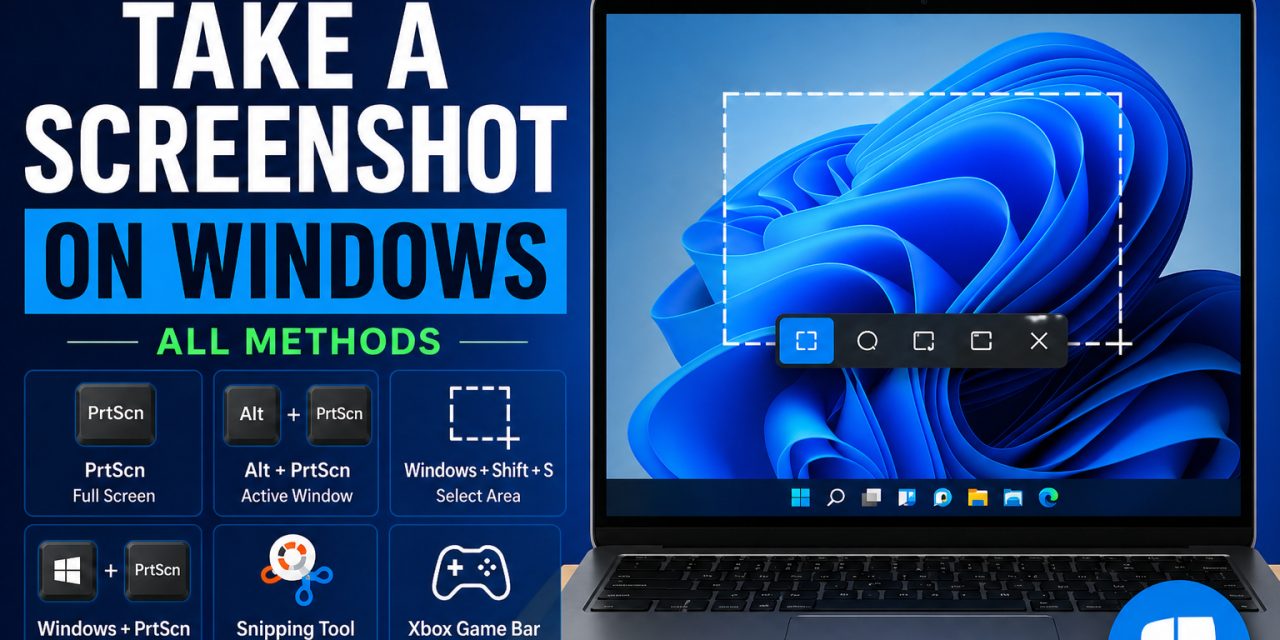
Taking a screenshot on Windows is simple—once you know the right shortcuts. Whether you want to capture your whole screen, a single window, or just part of it, Windows has multiple built-in ways to do it.
In this guide, you’ll learn all the ways to take a screenshot on Windows, from quick keyboard shortcuts to built-in tools.
Quick Methods (Most Useful)
If you just want the fastest options, start here:
- PrtScn → Copies full screen to clipboard
- Windows + Shift + S → Select part of your screen
- Windows + PrtScn → Saves full screenshot automatically
Method 1: Print Screen (Full Screen)
Press:
PrtScnThis copies your entire screen to the clipboard.
To use it:
- Open an app like Paint or Word
- Press Ctrl + V to paste
Method 2: Alt + Print Screen (Active Window Only)
Press:
Alt + PrtScnThis captures only the active window (not the whole screen)
Perfect for:
- capturing a single app
- avoiding clutter
Method 3: Windows + Shift + S (Snipping Tool Shortcut)
Press:
Windows + Shift + S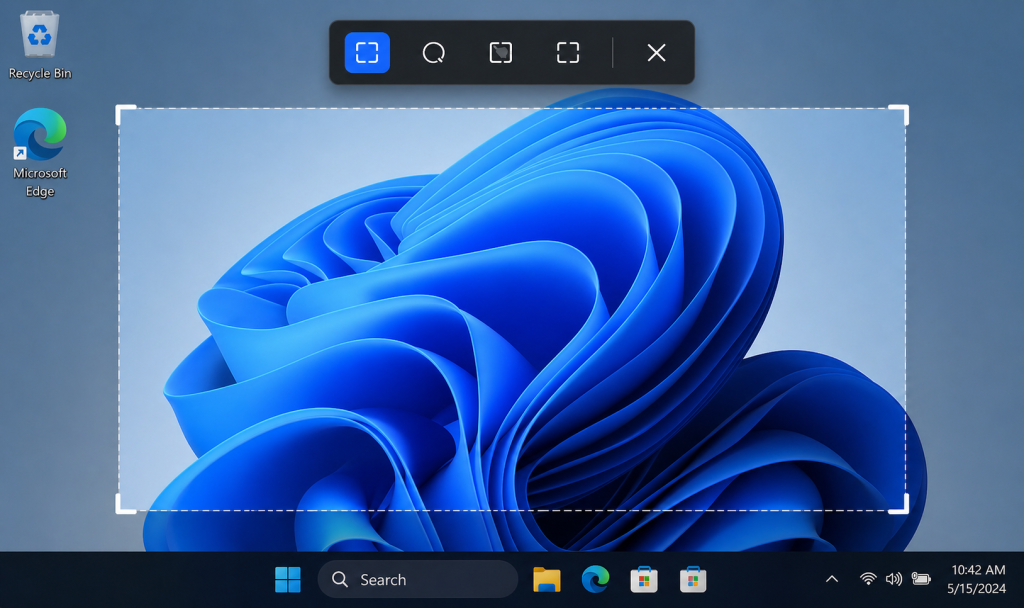
Selecting a custom area using the Snipping Tool shortcut.
Your screen will dim and you can select:
- Rectangle snip
- Freeform snip
- Window snip
- Fullscreen snip
The screenshot is copied to your clipboard.
Method 4: Windows + Print Screen (Auto Save)
Press:
Windows + PrtScnThis automatically saves your screenshot.
Find it here:
Pictures → ScreenshotsMethod 5: Snipping Tool App
Search for:
Snipping Tool
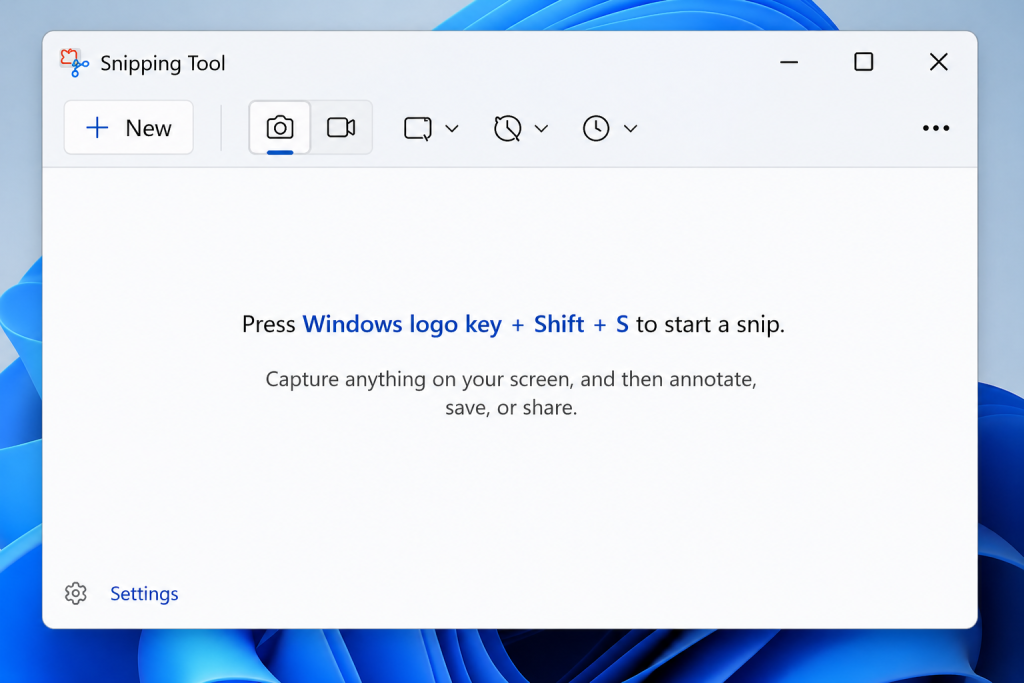
The Snipping Tool app with capture and annotation options.
This lets you:
- capture specific areas
- delay screenshots
- annotate images
This is a great option when you are building tutorials or guides for friends, family or coworkers.
Method 6: Snip & Sketch (Windows 10/11)
Windows now integrates this with the shortcut:
Windows + Shift + SAfter taking a screenshot, click the preview to:
- edit
- crop
- annotate
Bonus: Xbox Game Bar (For Games)
Press:
Windows + Alt + PrtScn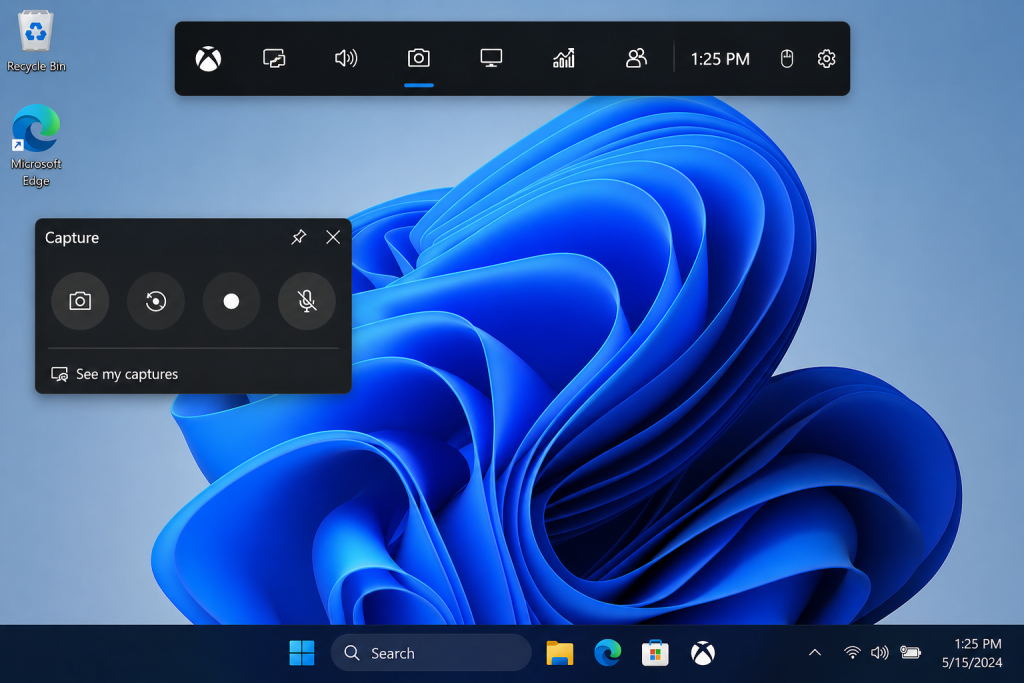
Using Xbox Game Bar to capture screenshots and recordings on Windows.
Saves screenshots from games automatically
Find them in:
Videos → CapturesFinal Thoughts
You don’t need to memorize everything.
Start with these:
- Windows + Shift + S → best overall
- Windows + PrtScn → fastest save
- Alt + PrtScn → clean window capture
Once you use them a few times, they become second nature.
What is Your Favorite Method?
I use Windows + Shift + S constantly—it’s the fastest way to grab exactly what I need without extra steps. In fact, personally I almost never use the other methods. What about you? Which method do you use the most?