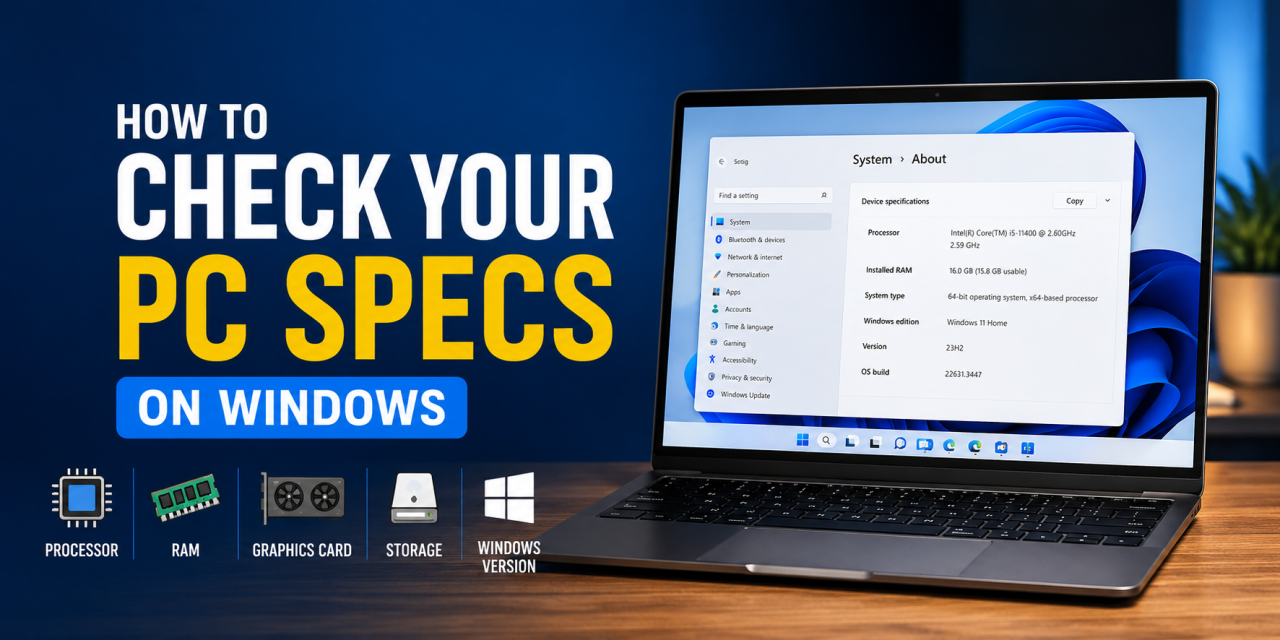
Knowing your PC specs is useful for much more than simple curiosity. You may need this information before installing a new game, downloading software, upgrading hardware, troubleshooting performance issues, or checking whether your computer meets minimum system requirements. Many games and applications list required processor, RAM, graphics card, storage, and operating system specifications before installation, and knowing your hardware can help you avoid compatibility problems. It can also help you decide whether your PC needs upgrades like additional memory, more storage, or a better graphics card. The most important specs to know are your processor, installed RAM, graphics card, available storage space, and Windows version, and the good news is that Windows provides several easy ways to find this information.
Here’s how to check your PC specs on Windows.
Method 1: Use Windows Settings
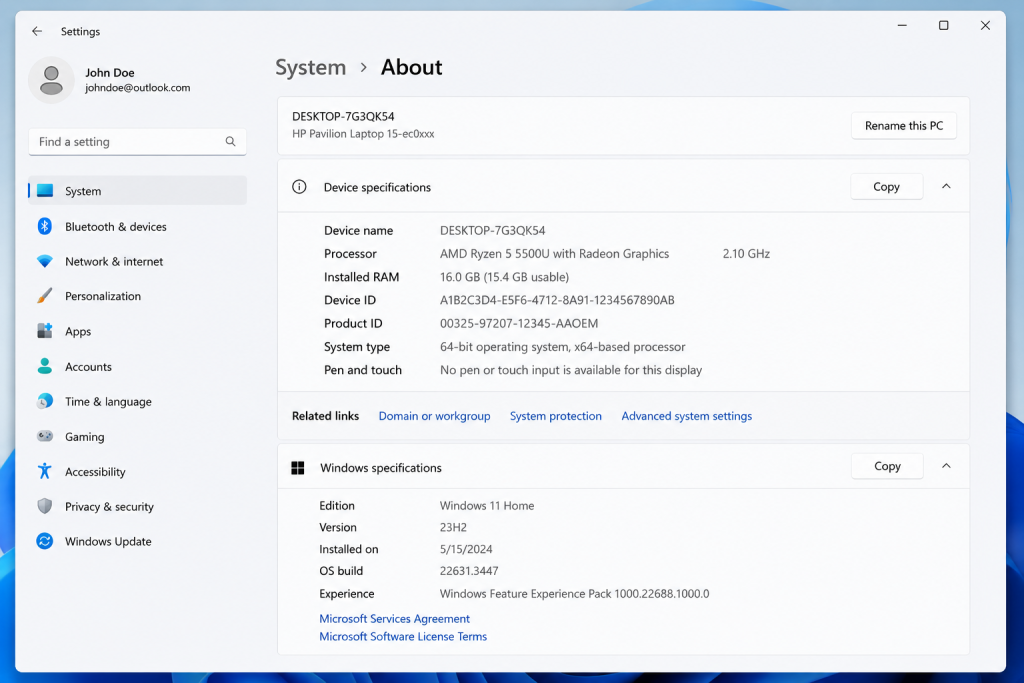
The System > About page is the quickest way to check basic PC specs like your processor, RAM, and Windows version.
This is the easiest method for most users.
Press: Windows Key + I
Go to: System
Click: About
Here you’ll find:
- Processor
- Installed RAM
- System type
- Device name
- Windows version
This method works well for basic information.
Method 2: Use Task Manager
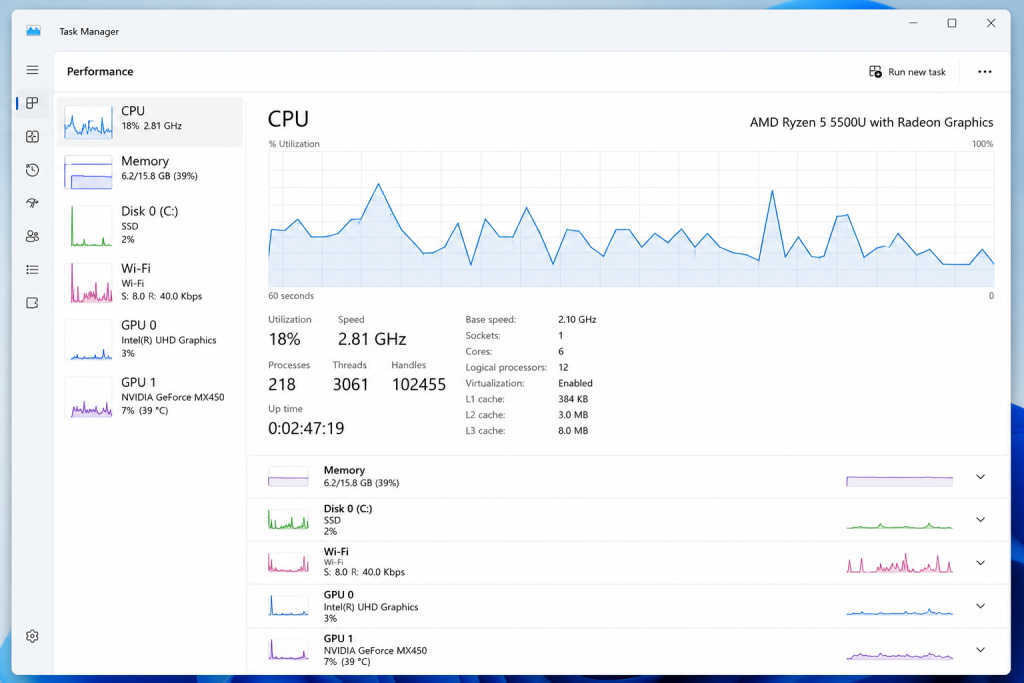
Task Manager lets you view real-time performance data for your CPU, memory, storage, and graphics hardware.
Task Manager shows live hardware information.
Press: Ctrl + Shift + Esc
Click: Performance
You can view:
- CPU usage
- Memory usage
- GPU information
- Disk activity
- Wi-Fi usage
This is helpful if you want real-time performance details.
Method 3: Use DirectX Diagnostic Tool
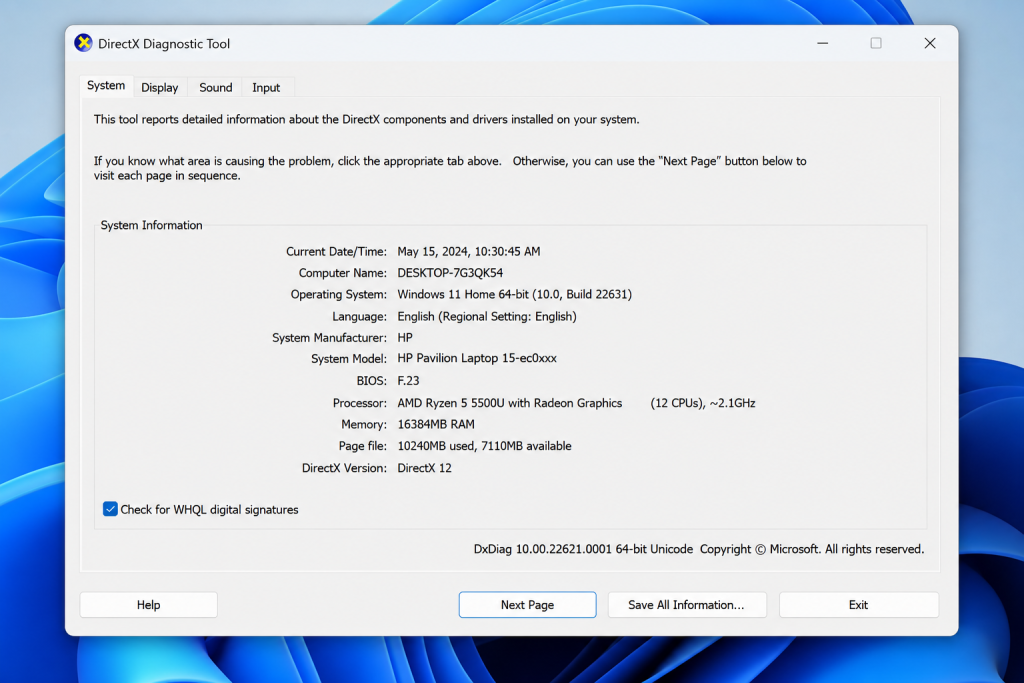
The DirectX Diagnostic Tool helps gamers quickly check graphics, processor, and memory information on Windows PCs.
This tool is especially helpful for gamers.
Press: Windows Key + R
Type:
dxdiag
Press Enter.
Here you can find:
- Graphics card information
- Sound devices
- Processor details
- Memory
This helps when checking game requirements.
Method 4: Use System Information
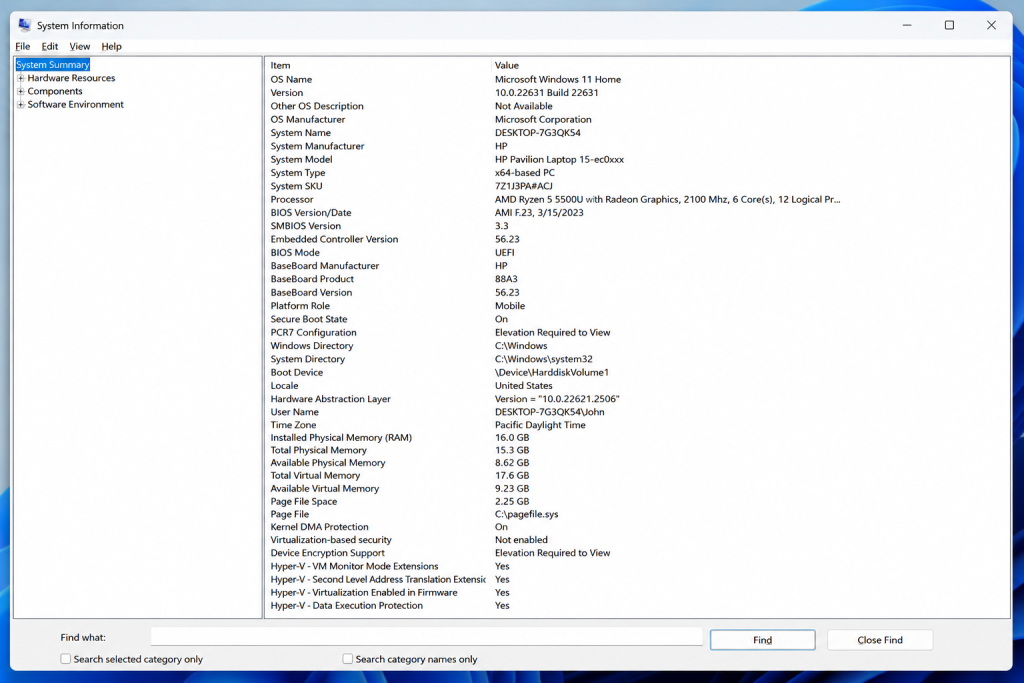
System Information provides a deeper look at your hardware and software details beyond the basic Windows settings menu.
For more detailed specs:
Press: Windows Key + R
Type:
msinfo32
Press Enter.
This tool provides detailed hardware and software information.
How to Check Available Storage
Open: File Explorer
Click: This PC
You’ll see how much storage space is available on your drives.
This is useful before downloading large games or applications.
How to Compare Your Specs to Game Requirements
Before downloading a game, compare your specs to the game’s minimum requirements.
Pay close attention to:
- RAM
- Processor
- Graphics card
- Storage requirements
This can help prevent installation issues.
How to Check Your Graphics Card
If you only want to see your graphics card information, there are two easy ways.
Task Manager
Open: Ctrl + Shift + Esc
Click: Performance
Select: GPU
You’ll see your graphics card model and usage information.
Device Manager
Right click the Start button
Select: Device Manager
Expand: Display Adapters
This shows your installed graphics card. This is especially helpful for gamers.
Can Your PC Run a Game?
Many users check their specs before buying a game. Compare your PC hardware to the game’s listed requirements on platforms like Steam or official developer websites.
Check:
- Processor requirements
- RAM requirements
- Graphics card requirements
- Storage requirements
- Operating system requirements
If your specs fall below minimum requirements, the game may not run properly.
Common Problems When Checking PC Specs
Your GPU Is Missing
Update your graphics drivers and restart your PC.
Your Storage Looks Full
Delete unnecessary files or move data to external storage.
Performance Seems Slow
Check Task Manager to see if background apps are using too many resources.
Final Thoughts
Checking your PC specs on Windows is quick and easy. Most users can find what they need through Settings or Task Manager. Gamers and advanced users may prefer DirectX Diagnostic Tool or System Information for more detailed hardware information.
If you’re learning more Windows tips, check out our guide on how to take a screenshot on Windows.